AI providers
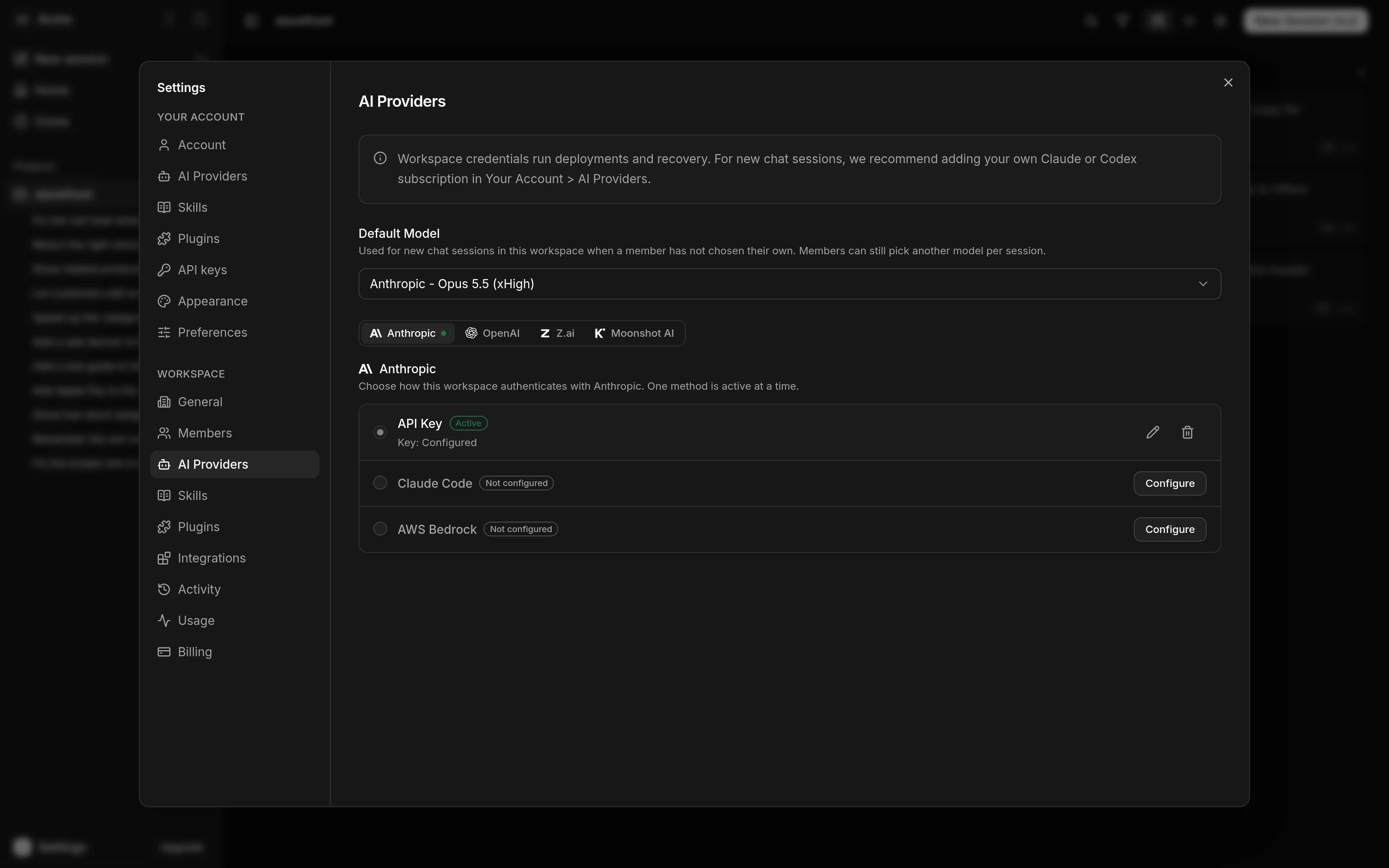
Connect workspace Credentials in Settings > your workspace > AI Providers, or personal Subscriptions in Settings > You > AI Providers. Workspace tasks, their Delegated Runs, workspace Deploys and workspace Crons use workspace Credentials only. Personal Crons with or without repositories use your Subscriptions or Sensei free when you hold none. The settings notice says "Workspace tasks and Deploys use workspace credentials only. Your personal source choice does not apply here." Assignment and whoever sends a message change nothing.
Sensei, personal tasks, personal-project Deploys and personal Crons use your Subscriptions while you hold any. With none, they can use Sensei free. A login at its limit or needing reconnect still counts, including SuperGrok. Limits, reconnects and provider failures never move work to Free.
Each provider row opens to show its methods, accounts and usage windows. You can connect several accounts to a provider.
Connect the workspace's Credentials
Owners and admins connect these. Members see the same section read-only: each open row ends with "Only workspace admins can change" and the provider's name, and has no menus or buttons.
| Provider | Methods |
|---|---|
| Claude | API Key, Claude Code, AWS Bedrock |
| Codex | API Key, Codex |
| Gemini | Antigravity, Gemini API |
| Grok | SuperGrok, xAI API key |
| GLM | GLM Coding Plan |
| Kimi | Kimi Code |
| DeepSeek | DeepSeek API |
- Open Settings > your workspace > AI Providers.
- Open the Claude, Codex, Gemini, GLM, Kimi, DeepSeek, Muse or Grok row. Its list shows every method, with a radio for the method in use. A method with nothing saved has a disabled radio and one setup button: Sign in for Claude Code, Codex, Antigravity, Muse Code and SuperGrok, Set up for AWS Bedrock, and Add key for API Key, Gemini API, xAI API key, GLM Coding Plan, Kimi Code and DeepSeek API.
- Complete the method as the table below shows. A key method opens a form inside the row: fill it in and press Save, or press Escape or Cancel to close it. Claude Code and Codex sign in through a dialog.
| Method | What you do |
|---|---|
| SuperGrok | Press Sign in, copy the device code, open the Grok sign-in page and enter the code. |
| xAI API key (workspace only) | Paste your xAI API key and press Save. |
| API Key | Paste the key and press Save. |
| AWS Bedrock | Choose the AWS Region and paste the Bedrock API Key. Pick a Validation model your Bedrock account has enabled, then press Save. |
| Claude Code | Open the Claude sign-in page and sign in. Paste the code it shows into Authorization code and press Connect. |
| Codex | Copy the code the dialog shows. Open the OpenAI sign-in page, sign in to ChatGPT and enter the code. The dialog closes when you finish. |
| GLM Coding Plan | Paste an API key from your Z.ai API keys page and press Save. |
| Kimi Code | Paste an API key from your Kimi Code Console and press Save. |
| DeepSeek API | Paste an API key from the DeepSeek Platform and press Save. |
Sensei checks every key before it saves it. Each provider has one active method at a time, selected by its radio. Choose another saved method's radio to move the provider onto it. Saving a Gemini method does not select it. Other providers activate a method when you save it. See Gemini for its sign-in flow.
Connect your own Subscription
- Open Settings > You > AI Providers.
- Open the Claude, Codex, Gemini, Muse, Grok, GLM, Kimi or DeepSeek row. Press Sign in for Claude Code, Codex, Muse Code, SuperGrok or Antigravity, or Add key for GLM Coding Plan, Kimi Code or DeepSeek API.
- Sign in the same way as in the table above. For a GLM Coding Plan, paste the plan's API key. A Team Plan key works too. For Kimi Code, paste a key from the Kimi Code Console. Kimi refuses a key whose membership does not include Kimi K3. For DeepSeek API, paste a key from the DeepSeek Platform. For Gemini, see Gemini.
Your Subscription belongs to you and follows you into every workspace you belong to. The same section sets your Default Model, which Models explains.
To disconnect your only account, press the trash icon on its row, then press Disconnect. The dialog says "It will no longer be available for personal work. A Turn already running finishes on it." Removing your last Subscription moves personal choices to Auto - Sensei free from the next turn. With several accounts, the next usable account of that provider can run the work.
Choose what runs your personal work
The Default Model picker sets the default for Sensei, personal tasks and personal Crons. Existing work with its own choice keeps it. A Deploy without a saved model takes the first connected provider in catalog order and its catalog default model.
The picker shows Auto - Sensei free when Free is selected. Its menu offers Auto - Free, with the prompts remaining, such as "19 of 25 left". A paused Free entry reads Paused and cannot be selected.
With a Subscription, Auto appears when available, followed by provider groups with their logos and models. With none, only Auto - Free, with the prompts left, and Connect a subscription appear. Free stays hidden even when your Subscription is at its limit or needs reconnecting.
With Free selected, a help icon beside Default Model says "Connect a personal subscription to use top-tier models." A notice shows under the picker only when the selected source cannot run, such as when no Free prompts are left or no connected Subscription runs your model.
Connecting your first Subscription moves your Free Default Model, Sensei threads, personal tasks and personal-space chat sessions to Auto over Subscriptions from their next turn. Thread crons move to Default; crons with repositories and personal-project Deploys move to the provider's catalog default model. A running turn keeps its source. Removing the last Subscription moves every explicit personal choice to Auto - Sensei free. Saves or sends that change a choice to Free while you hold a Subscription, or to a personal model while you hold none, are refused.
If saving fails, the notice says "Could not save your choice. Your current source and connections are unchanged." Press Retry to save again. Your previous choice stays active until saving succeeds.
Connect several accounts
A provider row holds more than one account, so a plan that runs out does not stop your work. Each account is a login, or for GLM Coding Plan, Kimi Code and DeepSeek API a key.
| Where | Holds up to 20 |
|---|---|
| Your Account | Claude Code, Codex, Muse Code, SuperGrok, GLM Coding Plan and Kimi Code accounts and DeepSeek API keys, each provider counted on its own. |
| Workspace | Claude Code, Codex, Muse Code and SuperGrok accounts. |
Google keeps one Antigravity sign-in per member. A workspace can keep one sign-in and one Gemini API key, with one method selected. The workspace's API Key, AWS Bedrock, GLM Coding Plan, Kimi Code and DeepSeek API stay one each. Only admins change the workspace's accounts. Members see them read-only.
- Open the provider's row.
- Press Add account under the method's accounts and sign in, or press Add key under the DeepSeek API keys and paste the key.
- Repeat for each account. At 20, the add button is disabled and its tooltip says why. Disconnect one to add another.
Sensei refuses an account that is already connected, and nothing is overwritten. For GLM Coding Plan, Kimi Code and DeepSeek API the form says so under the key. For Claude Code and Codex the sign-in dialog says so. For Claude Code and Codex it compares the account email. For a GLM Coding Plan, Kimi Code or DeepSeek API it compares the key.
Each account has its own row under the method, oldest first. It shows the account email, or the end of the key, and its usage below the name. A status pill appears only when something stops Sensei using the account: Limit reached or Reconnect required. Several accounts can be in use at once, so an account that works has no pill.
| Status | Means |
|---|---|
| Limit reached | The plan ran out. The account is used again once its reset has passed. A DeepSeek API key whose balance is empty is used again after one hour, or as soon as its balance shows funds. |
| Reconnect required | The login expired or was revoked. Sensei skips it. |
A workspace method that is not active reads Not in use. Its logins show only limits and reconnect warnings.
On each login row:
- Press the pencil icon to sign in again, or replace a key.
- Press the trash icon, then confirm in the dialog that names the account. A running turn finishes on it. Tasks move to the next account on their next message. The last account’s trash icon says Disconnect instead, which asks the way a single account does.
- Choose Refresh usage in the method row’s ⋯ menu to read the usage of every account of that provider again.
- A row that reads Reconnect required has a Reconnect button in place of its pencil.
Sensei spreads work across your accounts of a provider. When a chat session, a Cron Run or a Deploy first uses the provider, Sensei picks the account with the most quota left, reading the 5-hour window and how fast it is being used. An account with no usage reading counts as the average of the others. If two accounts are within 10 points, the one with fewer sessions, runs and deploys on it wins, and when those are equal too, the oldest account wins. The work then keeps that account, so its context and prompt cache stay. It moves only when the account reaches its limit, needs reconnecting or is removed. Google uses your sign-in for personal work, or the workspace's selected method for workspace work. Sensei free balances its own accounts separately and keeps its routing hidden.
When an account reaches its limit
A chat session turn that hits a plan's usage limit does not stop while another account is left. Sensei marks that account Limit reached until the reset time the provider reports, or for one hour when it reports none. It then continues the same turn on your account with the most quota left that has not been tried in this turn, and you do nothing. The session keeps that account for its next turns. The agent keeps its context. A divider in the transcript marks the move. It reads "Claude Code limit reached, continued on Tommaso's next Claude Code account". It names whose accounts they are, never an email.
On Subscriptions or workspace Credentials, Sensei and the agents a turn starts, called Delegated Runs, do not continue. When one hits a limit, Sensei marks the account Limit reached. Sensei's turn stops and the next turn starts on another account. If every login of its model's provider is at its limit and another Subscription can run, the next Sensei Turn uses Auto over the other usable providers until the reset. Its saved model choice stays the same. The run fails, and the turn's later runs go to another provider, or start nowhere when none is left. Sensei does not retry the run; the agent decides whether to start it again. An agent continues a finished run on the same provider and model. When that provider reached its limit in this turn, Sensei refuses, and the agent starts a new run instead.
An account that needs reconnecting is skipped, and the next one runs. A GLM Coding Plan or Kimi Code key is at its limit only when its plan's allowance runs out. A DeepSeek API key is at its limit only when its balance is empty. A provider that is merely busy is not a limit.
The same rule holds for the workspace's accounts. Deploys and Cron Runs pick one of the workspace's usable Claude Code or Codex accounts the same way when they start, keep it, and continue on another at a limit. A deploy on your Subscription continues on another account of the same provider the same way. That holds for a GLM Coding Plan, Kimi Code or DeepSeek API key too, and it never moves to the workspace's Credentials or to anyone else's.
The workspace's Claude Code and Codex accounts get the same early re-check. At the start of a chat turn, a Cron Run and a Deploy turn, Sensei reads the usage of a workspace account marked at its limit at least 15 minutes earlier, and uses it again when the reading shows it under its limits. Opening its usage in AI Providers does the same. An admin can also choose Re-check now in the ⋯ menu of a Limit reached account. The login row says "Checking…" while it reads, then its status changes, or it says "Still at the limit."
When no account of the allowed owner can run the work, the turn stops. Personal work never borrows workspace Credentials, and workspace work never borrows personal Subscriptions or Free.
When all your Subscriptions are at their limit, wait for a reset or connect another Subscription. Free stays hidden while you hold a Subscription.
After removing the last Subscription, personal work uses Auto - Sensei free from its next turn.
A workspace credential problem asks a workspace admin to fix the Credentials. Connecting your Subscription cannot fix it.
Whose credentials run what
| Work | Runs on |
|---|---|
| A workspace task, including one assigned to you or filed by a Cron | Workspace Credentials only. |
| A Delegated Run of a workspace task | The parent task's workspace Credentials only. |
| A workspace Deploy or Recovery Deploy | Workspace Credentials only. |
| A workspace Cron | Workspace Credentials only. |
| A personal task or Sensei thread | Your Subscriptions, or Sensei free when you hold none. |
| A personal Cron | Your Subscriptions, or Sensei free when you hold none, with or without repositories. |
| A personal-project Deploy | The owner's Subscriptions or Sensei free, following the Deploy model setting. |
Personal-project Deploys support every released provider on the owner's Subscriptions, including Gemini on their Antigravity sign-in, or Auto - Sensei free when they hold none. Free Deploys follow the same rules as other Free work. A Deploy without a stored model takes the first connected provider in catalog order and its catalog default model. A Recovery Deploy follows the same boundary and stays uncharged.
Sessions filed from Slack before the Slack Bot was retired follow these rules from their next turn. They no longer post turn endings to Slack.
Reassigning a workspace task never changes its credential owner. Connecting your first Subscription moves Free work to Subscriptions from its next turn. Removing the last moves personal choices to Free, including Crons with repositories.
Sensei does not bill model usage. The provider bills the account behind the Credentials, or counts it against the Subscription's plan. Plans and billing covers what Sensei bills.
Speeds
Fast and Ultrafast are paid speed tiers for some Codex models. Models explains how to pick one. Whether a turn gets its speed depends on the Codex login it runs on.
| Codex method | Fast | Ultrafast |
|---|---|---|
| Codex, as your Subscription or the workspace's Credentials | Yes. | On a ChatGPT Pro 500 or Enterprise plan. |
| API Key | Yes. | Not yet. Every Ultrafast turn fails until Codex lists the tier for API keys. |
A deploy on Ultrafast needs the Codex login it runs on, the workspace's or your own, on one of those plans.
Read the usage meters
Claude Code, Codex, Muse Code, Antigravity, GLM Coding Plan and Kimi Code rows show how much of the plan is used. The meters read 5-hour session and Weekly, each with the share used, and "Resets in" with the time left when the provider reports a reset. Kimi Code has no weekly limit, so its row reads 5-hour session and Monthly. A row with no reading yet says "No usage reading yet." A DeepSeek API key is paid as you go and has no meters. Its row shows the key's balance beside the key, for example "Balance $12.40, pay as you go". An empty balance reads "Balance $0.00" in the warning color. A workspace API Key or AWS Bedrock key reads "Pay as you go". Your own meters are in the You group of Settings. A workspace's are in that workspace's group, where its members can read them too.
Reconnect
A Claude Code or Codex login can expire or be revoked. The account then reads Reconnect required. GLM checks a GLM Coding Plan key, Kimi a Kimi Code key, and DeepSeek a DeepSeek API key, when you save it. A key it refuses later fails the turn with Authentication failed.
- For your Subscription, press Reconnect on the account's row and sign in again.
- For the workspace's Credentials, an admin presses Reconnect on the account's row, or presses its pencil icon, then signs in again. For a single-key method, the pencil icon takes a replacement key.
Other accounts keep running meanwhile. When no allowed account can run a personal task, reconnect your Subscription in AI Providers. For workspace work, ask an admin to reconnect the workspace Credentials.
Sensei free
With no Subscription, choose Auto - Free in a personal picker to run on Sensei free. The selected choice reads Auto - Sensei free. Sensei chooses the model internally and shows no Free model, provider, Source or routing move.
You share one rolling 7-day allowance across personal tasks, Sensei, personal-project Deploys and personal Crons. The default is 25 prompts, set by staff.
- A message starting a turn, a
/compact, a Sensei member or Event Turn, and a member-started Deploy or Deploy Chat message each spend one prompt. - Each personal Cron fire on Free spends one prompt. A fire Free cannot run is skipped with its reason, without counting toward the five-failure pause.
- A prompt returns seven days after it was spent. The sidebar and picker show the remaining count.
- Steers, the agent's own steps and Recovery Deploys spend no prompt. Routing and retries spend no extra prompt.
Free works like a personal Subscription. An active Source can run everything a personal Subscription of that provider runs: personal tasks, Sensei member and Event Turns, personal-project Deploys, Personal Crons with or without repositories, and Delegated Runs. Only its credentials, quota, model access, the maximum Turn Level set by staff and runtime limits shared by all owners limit what it can run. There is no separate Free provider list.
Sensei picks one Source for each chat session, Sensei thread Turn, Deploy or Cron run. A Free task's Delegated Runs use their parent Turn's Source and provider. Sensei does not pick a separate Source for each helper.
When a Source reaches its limit, is paused or is removed, Sensei moves the work and its Delegated Runs to another available Source automatically. You do nothing. A running Turn continues on another Source with the same model, at no extra prompt. When none is left, the Turn stops, and the next Turn hands off to another provider. The model, Source, provider and moves stay hidden, including in helper rows, run results, Cron run pages and live updates.
When your allowance is empty, wait for a prompt to return or choose Connect a subscription. Connecting your first Subscription moves Free work to Subscriptions from its next turn. If no eligible Free account can serve, Free pauses until one is available. Event Turns wait when Free cannot run them.
When no provider is connected
Personal work uses Auto - Sensei free without a Subscription, subject to availability and your allowance. Removing the last Subscription moves personal choices to Free from the next turn.
Workspace work needs usable workspace Credentials. Ask an owner or admin to connect or reconnect them in Settings > your workspace > AI Providers.
Limits
- API Key and AWS Bedrock are for the workspace only. A Subscription is Claude Code, Codex, GLM Coding Plan, Kimi Code, DeepSeek API, Muse Code or Antigravity. DeepSeek API is the personal pay-as-you-go key.
- Gemini supports personal Antigravity sign-ins and workspace Credentials. Workspace work reads only the workspace's selected method. A limit never activates another method or crosses that boundary.
- Subscription work stops when no allowed account can run it. Limits and failures never move it to Free.
- Personal-project Deploys support every released provider on the owner's Subscriptions, or Sensei free when the owner holds none. Workspace Deploys require workspace Credentials.
- A workspace Cron requires workspace Credentials. A personal Cron with or without repositories uses your Subscriptions, or Free when you hold none.
- Free Delegated Runs use the parent Turn's Source. Runtime limits still apply: Grok Delegated Runs need full access, and Google runs cannot use custom agents.
- Sensei free is unavailable to disposable email addresses.
Next steps
- Pick a model and set your Default Model.
- Import a repository once the workspace has Credentials.
- Plans and billing for what Sensei charges.
Muse Code
Connect Muse Code from the Muse row in your own AI Providers, or in the workspace’s AI Providers as a workspace admin. Open the verification page, approve the code, and return to Sensei. You can add up to 20 logins, reconnect them or remove one.
Muse Wonder is available on every Muse Code plan. Muse Wonder Full requires Power Usage or Maximum Usage. A manually selected model your plan lacks is refused before it runs; pick another model or change your plan. Muse Code uses Standard privacy mode. Removing a login removes it from Sensei; revoke its authorization at Meta separately.
Usage meters show the session and weekly readings. Sensei reads them from Meta when the stored reading is more than 5 minutes old, and shows the last reading from sign-in, a Turn or a limit when Meta cannot be read. A reading an hour old or older says how old it is, for example "Reading taken 3h 10m ago", with the exact time in its tooltip. Before a reading exists, the row says "No usage reading yet." Logins on the same Meta account share one quota, so a limit one of them reaches shows on the others' meters too. A login at its limit becomes usable again at its reset, or earlier when Re-check now or a later reading shows it free.
Muse models are available for Chat Sessions and your Default Model. Auto and the Model Router route Muse when the allowed source can run it. Delegated Runs, Crons and Deploys support Muse. When Auto or a Delegated Run selects Muse Wonder Full and the login’s plan lacks it or cannot be read, it uses the next Muse model below it in the Model table.
Grok
Connect a SuperGrok login in Settings > You > AI Providers > Grok for personal work. A workspace can use a SuperGrok login or an xAI API key. Personal xAI API keys are not offered. Select the workspace method with its radio. Saving an xAI API key selects it, but proves no model entitlement.
Grok runs Chat Sessions, Auto, Sensei, Crons and Deploys. On Subscriptions, Personal Crons with Repositories and personal-project Deploys use the owner's SuperGrok login. Workspace Deploys use workspace Credentials. The Deploy Chat warns that Grok is less reliable. Grok Turns take no images. Sensei chooses the oldest SuperGrok login that needs no reconnect and has not reached its limit. Delegated Runs can use Grok with full access only; read-only runs never land on Grok.
Gemini
Google's Gemini models run in Antigravity. For workspace Credentials, open Settings > your workspace > AI Providers > Gemini. Owners and admins can change these Credentials. Members see them read-only. For your own Subscription, open Settings > You > AI Providers > Gemini. Your Subscription is one Antigravity sign-in, with no method selection. Existing personal Gemini API keys have been removed. A workspace can keep one sign-in and one API key.
| Method | What you do |
|---|---|
| Antigravity | Press Sign in, then Sign in with Google and sign in to the Google account of your Google AI plan. Your browser then shows a connection error at http://127.0.0.1. Copy the whole URL from its address bar, including everything after the question mark, paste it into Whole return URL and press Complete sign-in. |
| Gemini API (workspace only) | Press Add key, paste your Gemini API key and press Save. Google checks the key before it is saved. |
For your Subscription, saving the Antigravity sign-in makes it your Google access immediately. The pencil signs in again and the trash disconnects it. There is no personal API key or method selector. For workspace Credentials, saving either method never selects it: choose its radio for the next Gemini turn. A limit never switches methods. Disconnecting the selected workspace method leaves no method selected until an admin selects another.
The model picker offers Gemini models through your saved sign-in, or the workspace's selected method, when it does not need reconnecting. Gemini 4 Argon runs on a sign-in to Google AI Pro, not a trial, or Ultra. A Gemini API key never runs it. A model your method does not offer is refused before the turn reaches the model, and the error names the model.
A Gemini API key is paid as you go and has no limit windows. A sign-in Turn that uses up a window of your Google AI plan marks the sign-in Limit reached until the reset Google names. The turn stops with its limit notice when no allowed account can run it. Personal work never borrows workspace Credentials. The sign-in's row shows the plan's 5-hour and weekly windows, whichever method is selected. Sensei reads them from Google when the stored reading is more than 5 minutes old, and during each sign-in turn. When Google cannot be read, the row shows the last reading, and says how old it is once it is an hour old. Choose Refresh usage in the sign-in's ⋯ menu to read Google again now. Reading usage never changes the selected method or a limit. The closed Gemini row shows the sign-in's figure, or, for a workspace, "Pay as you go" while the API key is selected.
Gemini models are available for Chat Sessions and your Default Model. Auto and the Model Router route Gemini through your sign-in or the workspace's selected method. On a workspace Gemini API key, Auto steps down from Gemini 4 Argon to Gemini 3.8 Flash. Delegated Runs use the same allowed Google access as the session. A run that uses up a window of your Google AI plan marks the sign-in Limit reached until the reset Google names, and the turn's later runs go to other providers. When the plan does not offer a run's model, the run uses the next Gemini model the method offers. A run that starts as a custom agent does not run on Gemini. A /compact sent on a Gemini model is refused, and nothing is compacted. The chat shows "Antigravity compacts by itself and cannot compact on demand". /clear works, and the next Turn starts a new agent session.
In workspace settings, the same list shows every method. Choose a saved method’s radio to select it. Removing the selected method clears the selection. The other saved method stays configured. A failed replacement keeps the saved Credential. Another admin can replace a pending sign-in attempt; restart sign-in if the dialog says it was superseded.
Workspace Chat Sessions use only the workspace's selected Google method. Personal work on Subscriptions uses your saved Antigravity sign-in, with no selection step. A saved but unselected workspace method needs selection; a sign-in needing reconnect requires reconnecting. A limit never switches to Free or another method.
When an Antigravity sign-in reaches its limit, it waits for its reset. In a workspace, an admin can explicitly select another saved method. A personal sign-in never borrows workspace Credentials. A workspace sign-in never borrows your Subscription or Free. A Gemini API key cannot run a sign-in-only model.
Gemini also runs Deploys and personal crons with repositories. Workspace work uses workspace Credentials; personal work on Subscriptions uses the owner's Antigravity sign-in. Switching workspace methods keeps saved model choices. If the new method cannot run a saved Workspace Default, Cron or deploy model, change that model or select a suitable method. The app reports the unavailable model before it runs.
A workspace sign-in has its own reading, apart from any member's sign-in to the same Google account. A workspace sign-in at its limit stays selected and cannot run until its reset or an admin's explicit method change.