Plugins
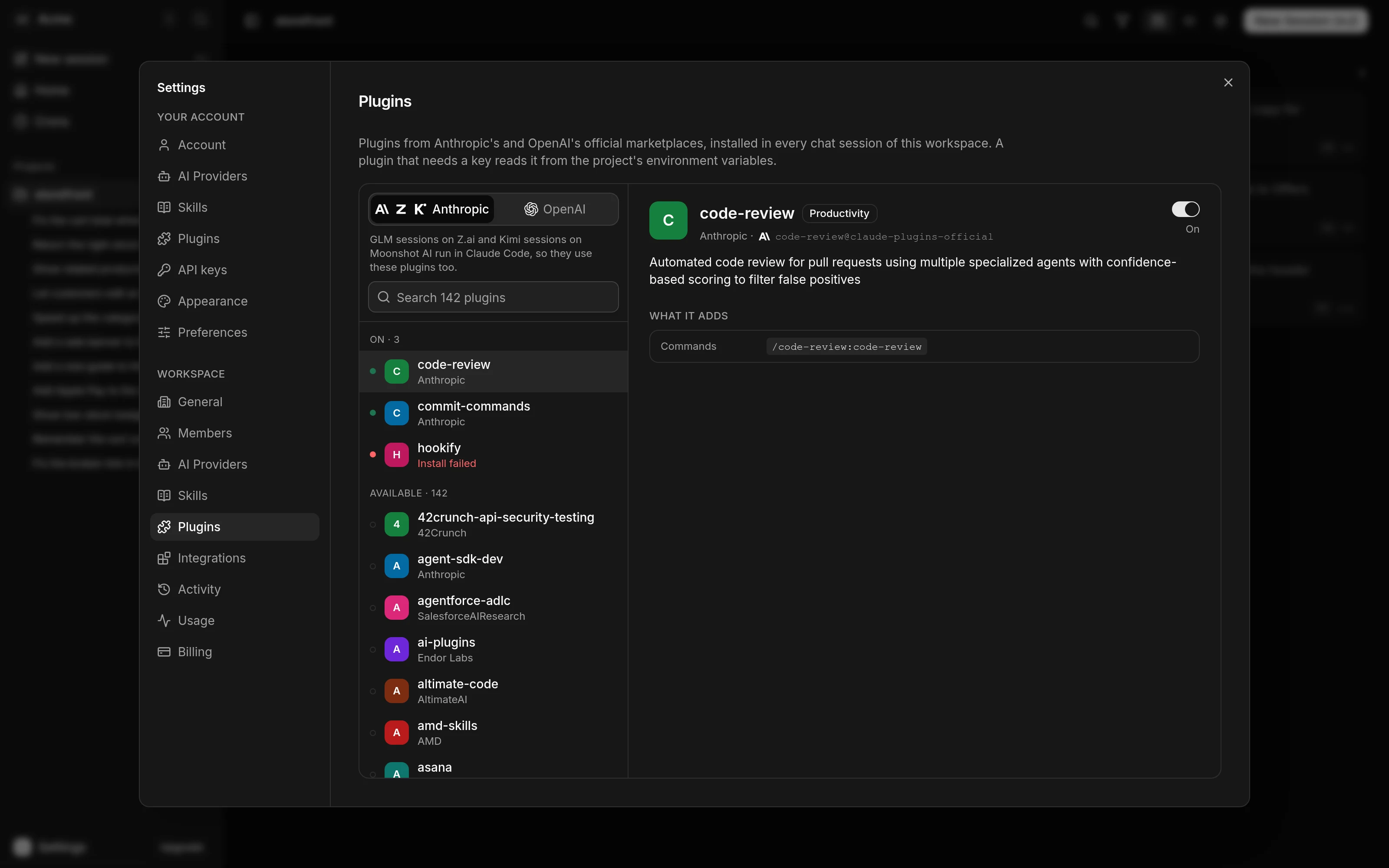
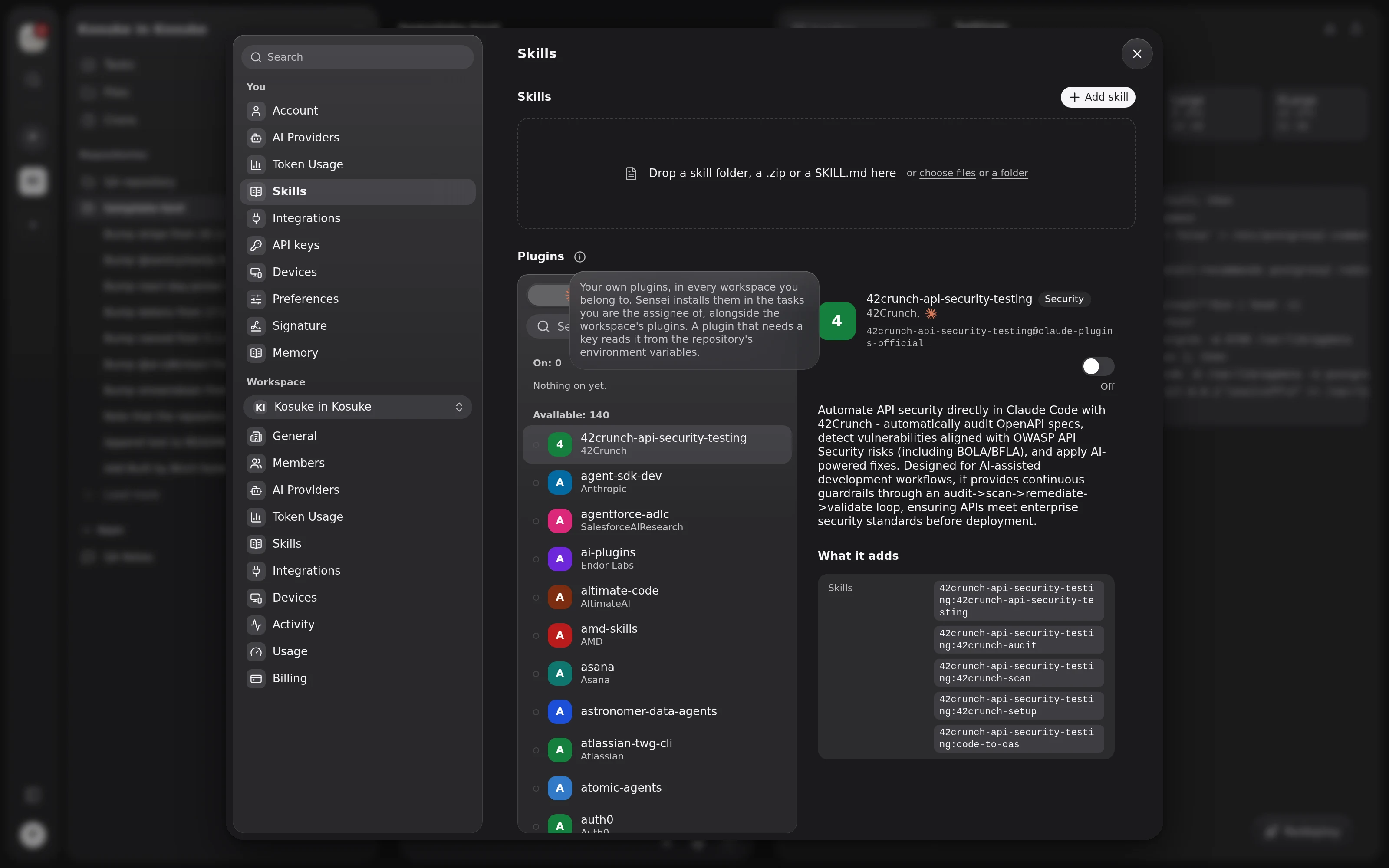
A plugin adds skills, commands, subagents, hooks or language servers to the agent in your tasks. Admins turn plugins on for the whole workspace in Settings > your workspace > Skills, under Plugins below the skills. You turn them on for your own tasks in Settings > You > Skills, under Plugins. Both lists offer plugins from Anthropic's and OpenAI's official marketplaces.
Turn on a plugin
- Open the list you want to change:
- Settings > your workspace > Skills, under Plugins, turns a plugin on for every task in the workspace. Only owners and admins can change it.
- Settings > You > Skills, under Plugins, turns a plugin on for the tasks you are the Assignee of.
- Choose Claude for Claude sessions or Codex for Codex sessions.
- Search for the plugin and select it.
- Turn on the switch in its pane.
A plugin you turn on moves to the On group at the top of the list. Members who are not admins see the workspace list with On or Off and "Only admins can change this".
Claude and Codex have separate lists. To use a plugin with both agents, turn it on in each list. GLM, Kimi and DeepSeek tasks run in Claude Code, so they use the Claude list. Muse Code sessions get no Workspace or Personal Plugins until Meta publishes an official marketplace, and Gemini sessions, which run in Antigravity, get none either.
Your Personal Plugins follow you into every workspace you belong to, and nobody else sees them, admins included. A session gets them together with the Workspace Plugins. In your list, a plugin the open workspace has on and you have not reads "On for" and the workspace name. Once you turn it on too, the row shows its author.
Plugins reach tasks only. Sensei loads none, Workspace or Personal.
Use a plugin in a session
A plugin you turn on reaches a running task at its next turn. A new task gets it when its sandbox starts.
A plugin's skills and commands appear in the composer menu beside your skills, named after the plugin. In a Claude session, type /code-review:code-review. Codex sessions start skills with $, as in $superpowers:brainstorming. To check that a plugin is active, type / or $ in the composer and look for its name.
Codex loads only a plugin's skills and hooks. For a Codex plugin, What it adds lists only those.
Which plugins a session gets
A task's sandbox can hold four kinds of plugin.
| Kind | Where it is set | Who sets it | When a change applies |
|---|---|---|---|
| Workspace Plugin | Settings > your workspace > Skills, under Plugins | Workspace owners and admins | At the next turn of every task in the workspace |
| Personal Plugin | Settings > You > Skills, under Plugins | You | At the next turn of every task you are the Assignee of, whoever sends the message |
| Project Plugin | .claude/settings.json or .codex/config.toml in the repository | Whoever can change the repository | For Claude, when a session's sandbox starts. For Codex, also each time you open the skills menu |
| Account Plugin | Anthropic's or OpenAI's own apps | Whoever owns the Claude or ChatGPT login | Whenever the agent signs in with that login |
You cannot turn a Workspace Plugin off for your own tasks. Settings show only Workspace and Personal Plugins, because Sensei cannot see what a Claude or ChatGPT account has turned on. When a Claude Account Plugin has the same name as one Sensei installs, Claude loads Sensei's copy.
Workspace and Personal Plugins reach tasks only. A project's main sandbox and its deploys run without them.
Which plugins settings list
Settings list the plugins in each provider's official marketplace. For Anthropic that is claude-plugins-official. For OpenAI it is openai-api-curated, the catalog OpenAI publishes for API logins. Turning an OpenAI plugin on in Sensei changes nothing on your ChatGPT account.
Settings hide plugins that carry an MCP server, and on the Codex list, plugins that carry a ChatGPT app. The foot of each list says what is hidden.
A Workspace or Personal Plugin runs the version its marketplace lists. When the marketplace lists a new version, running sessions pick it up at their next turn.
To use a plugin from another marketplace, declare it in your repository.
Plugins that need a key or a program
Sensei keeps no settings or secrets for a plugin. A plugin that needs a key, a token or a URL reads it from the project's environment variables. Its description says which variable. Add the variable in the project's settings, on the Environment tab.
A language-server plugin names its program under What it adds, for example typescript-language-server. Install that program in the project's setup, like any other tool the project needs. See Project settings.
Declare plugins in your repository
A repository can declare its own plugins, from any marketplace, in its agent settings file. These Project Plugins belong to the repository, as Project Skills do.
For Claude, add them to .claude/settings.json. Set each plugin to true in enabledPlugins. Name the marketplaces they come from in extraKnownMarketplaces, as a GitHub repository, a URL or a path.
{
  "extraKnownMarketplaces": {
    "acme-tools": { "source": { "source": "github", "repo": "acme/agent-plugins" } }
  },
  "enabledPlugins": { "release-kit@acme-tools": true }
}
Claude Project Plugins install when a session's sandbox starts. A declaration you add later installs in the next session's sandbox.
For Codex, add them to .codex/config.toml. Turn plugins on under [plugins]. Name their marketplaces under [marketplaces], as a Git repository (source_type = "git", with an optional ref) or a folder in the repository (source_type = "local"). A plugin can also come from the repository's own marketplace in .agents/plugins/marketplace.json.
[marketplaces.acme-tools]
source_type = "git"
source = "acme/agent-plugins"
ref = "main"

[plugins."release-kit@acme-tools"]
enabled = true

# From this repository's own .agents/plugins/marketplace.json, which is named acme-repo.
[plugins."lint-kit@acme-repo"]
enabled = true
Sensei reads only the [plugins] and [marketplaces] tables and ignores the rest of the file. Codex Project Plugins install when the sandbox starts. They update again when you open the skills menu in the composer. That update installs new declarations and removes plugins the file no longer declares.
Sensei skips a Codex Project Plugin that comes from a ChatGPT account's marketplace, such as openai-curated-remote. It also skips one from a name OpenAI reserves, such as openai-curated or openai-api-curated. If the official list in settings has the plugin, turn it on there instead.
When an install fails
The turn runs anyway, without the plugin. A Workspace or Personal Plugin that fails to install shows it in three places:
- The transcript gets a line such as "Sensei couldn't install hookify, so this turn runs without it". Hover it to read the agent's error. The line marks the first turn the install failed.
- The plugin's row in settings reads Install failed, in red.
- The plugin's pane shows the error under Last install, with the task it happened in and the time.
Sensei tries the install again at every turn, and the next install that works clears the red row. Turning the plugin off and on again also clears it, until the next install fails.
Limits
- A Project Plugin that fails to install, or that Sensei skips, leaves no line in settings or the transcript. If its skills are missing from the menu, check the declaration.
To turn plugins on or off from a script, use kosuke plugins and kosuke plugins in the Sensei CLI.