Review the changes
Check the agent's work in the session while it happens. The Changes tab shows the diff, and you can comment on any line and send those comments to the agent. The Files tab lets you edit a file yourself. When the work looks right, press Open PR.
Read the diff
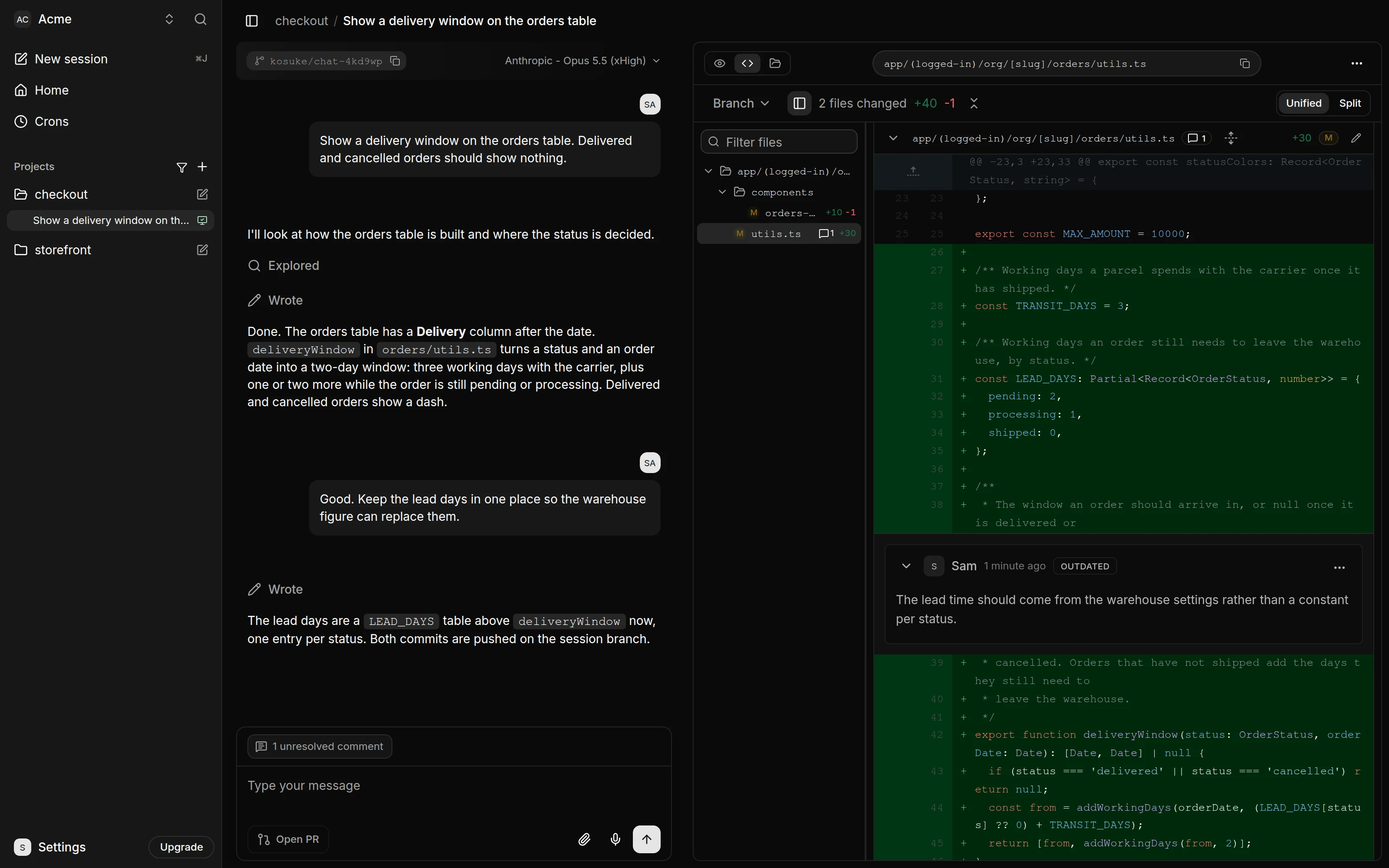
Open the Changes tab (the <> icon) in the session's right panel. The menu at its top left picks what the diff compares.
| Scope | Shows |
|---|---|
| Last Turn | What the agent's most recent turn changed. This is the default. |
| Uncommitted | Changes in the sandbox that nobody has committed yet. |
| Remote commits | One pushed commit that is not yet on the branch the session compares against: its pull request's base once it has one, the Target Branch before that. Pick it from the submenu. |
| Branch | Everything the pushed session branch adds over its pull request's base, or over the Target Branch before a pull request exists. This is what the pull request contains. |
The toolbar shows the totals, such as "2 files changed +40 -1". Press Unified or Split to change the layout. In a narrow panel, both sit under the ... menu. Type in the Filter files field to narrow the file list, or hide the list to give the diff more room. A changed image shows its Before and After versions.
The diff reads from the session's sandbox. When the sandbox is paused, the tab reads "Preview paused". Press Start preview to wake it.
Comment on a line
- Hover a line in the diff and press the + in its gutter. To cover several lines, drag from the + down to the last line.
- Type your comment and press Comment.
Each comment has a ... menu.
| Action | Who can |
|---|---|
| Mark as resolved or Unresolve | Any member who can open the project |
| Add to context or Remove from context | Any member who can open the project |
| Edit and Delete | The comment's author |
A comment keeps a copy of the lines it was written on. When the code under it changes, it shows an OUTDATED badge and folds to a line reading "Outdated comment". Press it to read the comment again.
Send comments to the agent
Unresolved comments go out with your next message on their own. A chip above the composer counts them, for example "1 unresolved comment".
- Hover the chip to see each comment. Press one to jump to it in the diff.
- To leave a comment out, press the X beside it. The X on the chip removes them all.
- Send your message, for example "Address the review comments."
The agent gets each comment with its file, its lines and the code it was written on. One message carries up to 50 comments. A comment you already sent stays out of later messages. To send it again, choose Add to context in its menu. A resolved comment never reaches the agent, so choose Unresolve in its menu first.
Edit a file yourself
- Open the Files tab (the folder icon). From the Changes tab, the pencil on a file's header opens that file there too.
- Pick a file in the tree, or type its path in the path bar.
- Edit it. Sensei saves as you type.
Editing is locked while the agent is working or the sandbox is unavailable. Your edits show in the Uncommitted scope of the Changes tab.
Review and open a pull request
In a Collaboration project, the agent commits and pushes its changes at the end of every turn. With a GitHub Connection, your GitHub account is the author of the commits. If you edit a file yourself, ask the agent to review and include your edits in its next turn.
Review the diff, then press Open PR when the work looks right. The footer shows Open PR when the branch has commits on GitHub and none left unpushed, or Ready for review once the session has a draft pull request. See Open a pull request.
In a YOLO App project, Sensei runs typecheck and build, then saves the tree as the next Version. See YOLO App projects.
Limits
- You cannot comment on the Remote commits scope.
- The Branch scope shows pushed work only. Uncommitted changes show under Uncommitted, and the latest turn's work shows under Last Turn, committed or not. Commits that have not reached GitHub appear in no scope until the agent pushes them.