Quickstart
Take one GitHub repository from sign-up to its first merged pull request in about ten minutes. The first steps follow Get started, the card above Sensei's composer. Each step ticks itself when you finish it.
A workspace deploy uses workspace Credentials only. Without usable Credentials, it waits for a workspace admin to fix them.
Before you begin
- A GitHub repository you can install the Kosuke App on.
- Workspace Credentials for deploys and workspace tasks. For Sensei, choose your personal Subscriptions or Sensei free.
Sign up
- Go to app.kosuke.ai. Press Continue with Apple or Continue with Google, or type your work email and press Continue.
- If you chose email, type the 8-digit code Sensei sends you. The code expires after 5 minutes.
The Welcome to Sensei screen wakes the assistant, then Sensei opens. You start in your Personal space: the sidebar shows your Personal card and no workspace yet.
Create your workspace
Press the + beside Workspaces in the sidebar, or New workspace in the account menu. Type a Workspace Name. If you have a promo code, type it in Promo code. Press Create Workspace. The workspace's Overview opens, and the workspace shows under Workspaces in the sidebar.
A new workspace starts on a Trial. Your first workspace gets Free Credits. They are granted once per person, so a second workspace starts with none. See Plans and billing.
If a teammate invited you, open the link in the invitation email instead. You join their workspace.
Connect your subscription
Choose your personal source in Settings > You > AI Providers. Under Default Model, choose Auto or a personal model while you hold a Subscription. With none, only Auto - Free, with the prompts left, and Connect a subscription appear. Free reads Auto - Sensei free once selected.
To connect a Subscription, open its provider row and sign in. Connecting your first Subscription moves Free work to Subscriptions from its next turn. A running turn keeps its source. Workspace tasks and deploys still use workspace Credentials only. See AI providers.
Import a repository
- In Get started, press Import. The Import Project dialog opens for your workspace. In the sidebar, the Import repository row under your workspace opens it too.
- If the dialog reads "Connect your repositories", press Install on GitHub. Pick your repository on GitHub and authorize the Kosuke App. You come back to the dialog. If your GitHub organization already has the app, press Connect GitHub under the button instead.
- Open the Repository list and pick your repository. If it is greyed out, click Install App beside it and add it on GitHub. You come back to the dialog.
- Press Import Project.
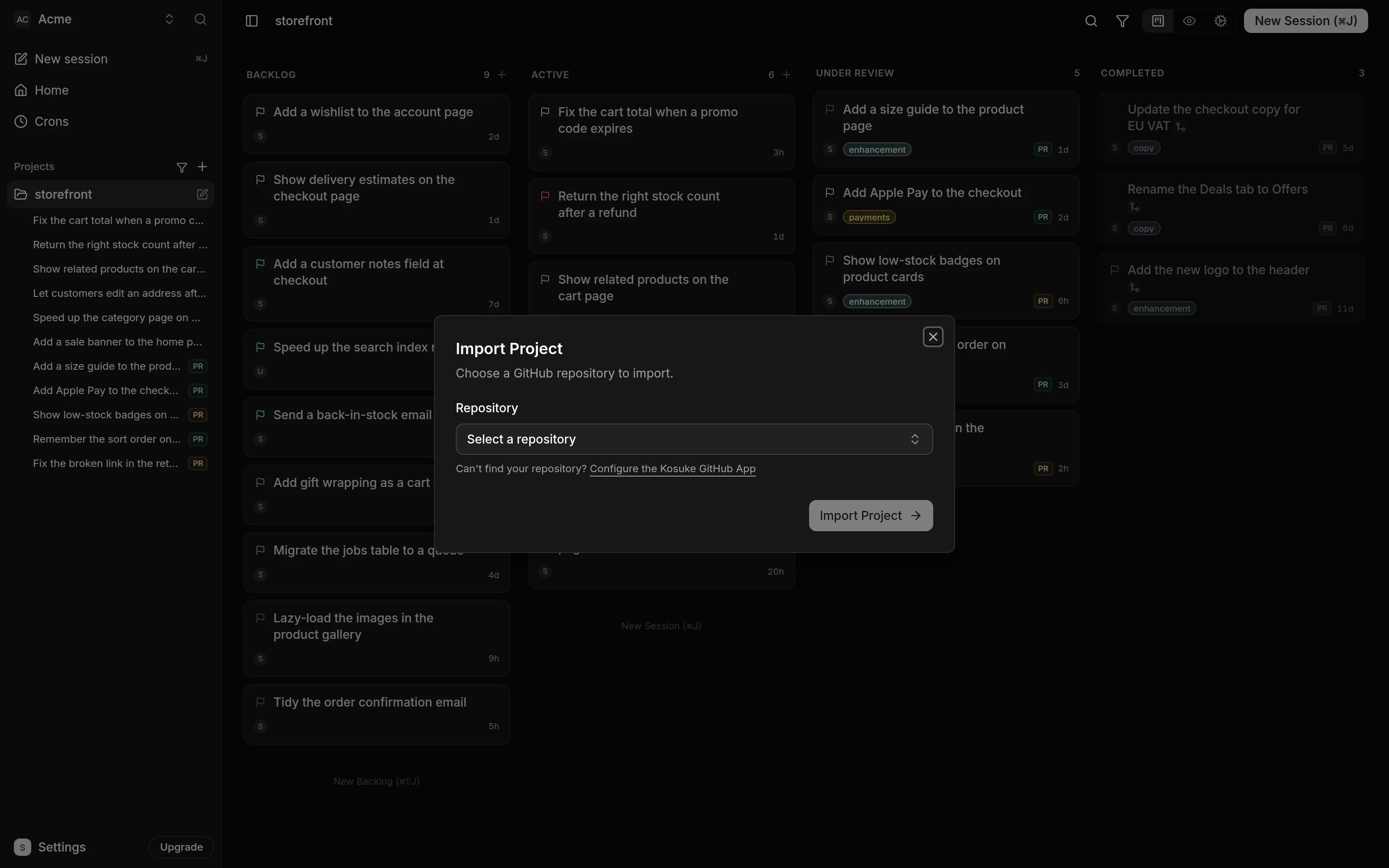
You stay in Sensei, and Get started ticks "Import a repository". The project's first deploy starts. Sensei posts a line such as "You imported storefront into Acme. Its first Deploy started.", and the project's row in the sidebar shows a spinner while the deploy runs. Open pull requests on the repository appear on the Tasks page as sessions. You do not have to wait for the deploy. See Import a repository.
Start the first task
- In Get started, press Start. The composer reads "Ship this ticket in storefront: ".
- Finish the sentence with one small change, the way you would tell a teammate, for example "Show the delivery date on the orders table." Send it.
If the first deploy is still running, Sensei files the task to the project's Backlog. It says "Filed Show the delivery date to storefront's Backlog. It starts by itself when the first Deploy lands." Once the deploy has landed, Sensei starts the task at once. Either way, Sensei then posts "Started Show the delivery date in storefront."
Get started now reads "You are set up. Sensei takes it from here." Press its X, or just move on: it does not come back.
The task runs /kosuke:ship. The agent works on a new branch, in a sandbox of its own,
and carries the ticket to a pull request ready for review. It stops only when it needs you.
The app writes that as an event in the session's thread, and Sensei draws a card there with the
buttons to decide it. See Sensei.
Follow the deploy
The deploy runs on its own. Anything it needs from you, such as a secret only you hold, arrives as a card in a Sensei thread.
- To watch it, click the project in the sidebar. Its settings open, with the Deploy Chat on the left. The chat adds a line for each phase, such as Creating sandbox, Starting services and Promoting the new sandbox. You can send the deploy agent instructions there too.
- If the agent asks a question, the message box reads "Answer the deploy agent...". Type your answer and send it.
The deploy is done when the chat shows "Deployed: Your project is live." Sensei tells you too, such as "storefront is deployed. 3 services are up."
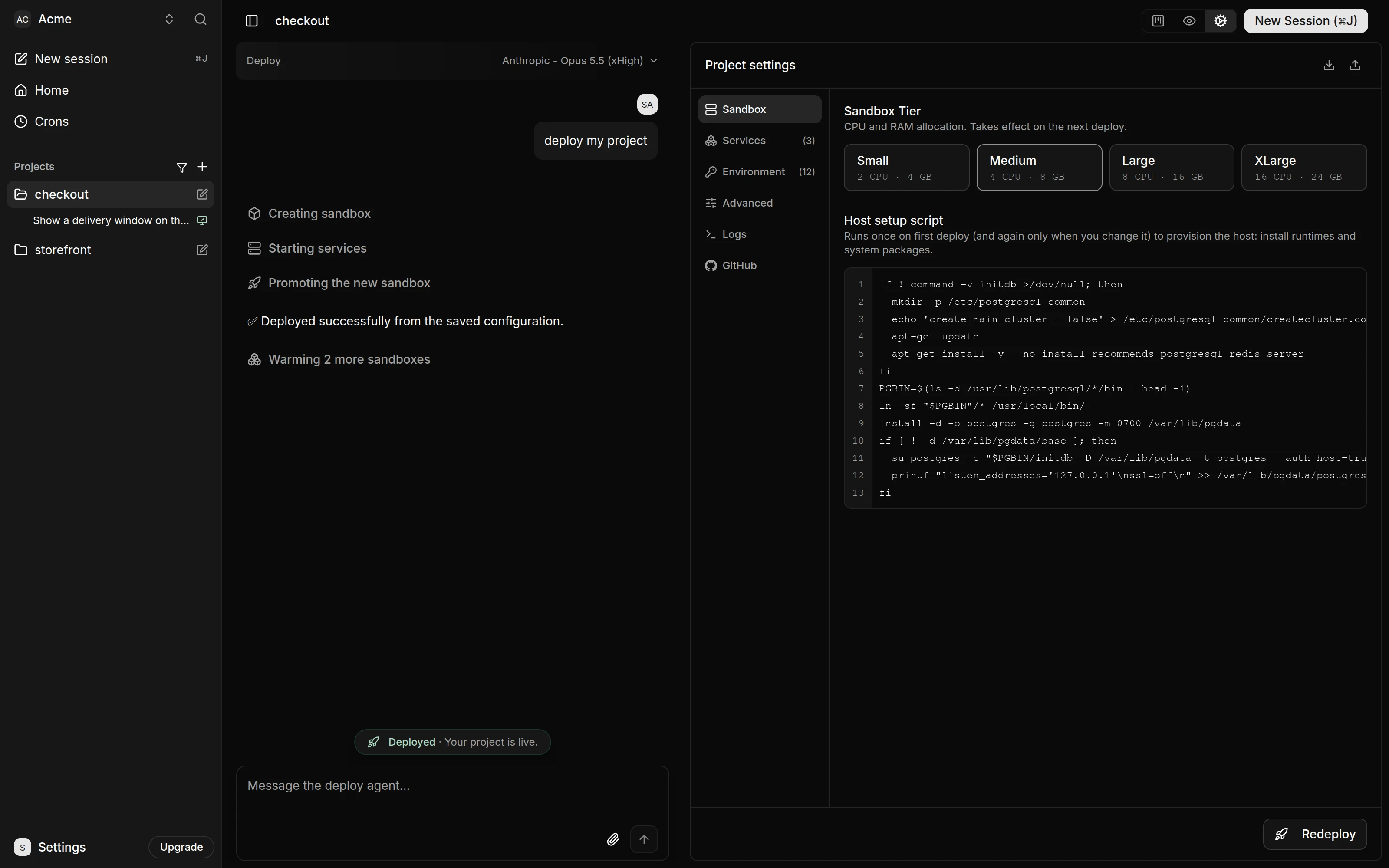
If the first deploy fails, the app starts one Recovery Deploy of it on its own. If that fails too, Sensei can draw a card in your Sensei threads with the fix the deploy agent proposes. You can also open the Logs tab on the right to see why. See Deploy your project.
Check the work
- Click the session's chip in Sensei, or the session under the project in the sidebar. The conversation opens on the left and your app on the right.
- Open the Preview tab and try the change in your app.
- If something is off, type a correction and send it. A message you send while the agent works waits in Up next, above the message box, and runs when the current turn ends.
- Open the Changes tab to read the diff.
If the agent asks you a question, you find it as a card in the session's Sensei thread. You can also answer it in the session. See Messages, Up next and steering.
Get to a pull request
/kosuke:ship opens the pull request for you. It builds the change, opens a draft pull
request, reviews and tests it, and marks it ready for review. The session then moves to Under
Review, and a Ready for review banner with the pull request number appears above the message
box. Sensei then draws a card in the session's thread to ask your teammates for a review.
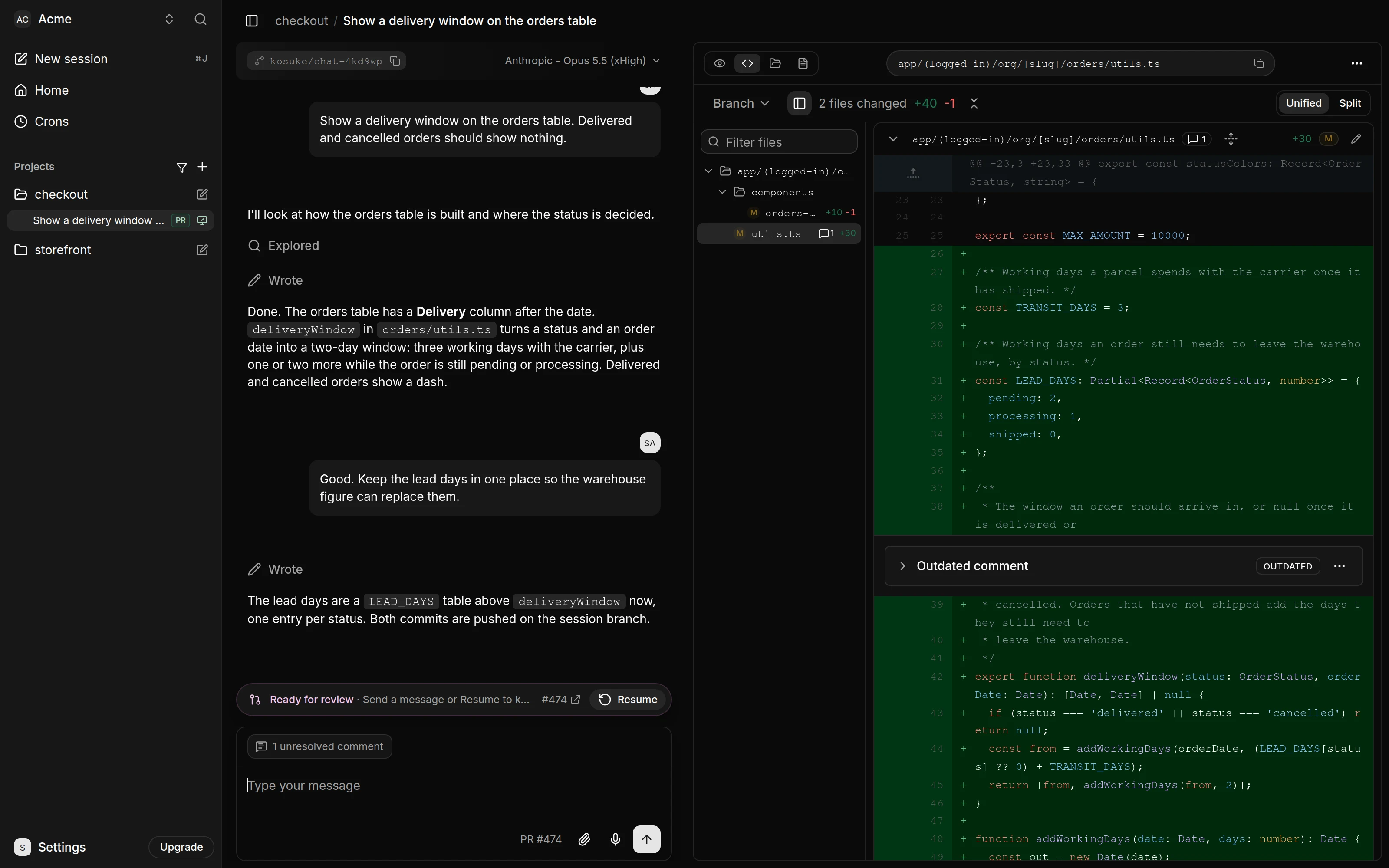
To open the pull request yourself instead, press Open PR beside the message box. Press Resume, or send a message, to keep working. See Open a pull request.
Merge your first PR
- Open the pull request on GitHub from the number in the banner.
- Merge it as you would any other pull request.
The session moves to Completed, and Sensei removes its sandbox. Next time, once the pull request is approved, Sensei can give you a Merge card instead. It is your go-ahead: the pull request merges as soon as GitHub allows it.
If something goes wrong
| What you see | What to do |
|---|---|
| "Deploys on GLM are less reliable than on Claude or GPT", or the same warning for Kimi, DeepSeek or Grok, in the Deploy Chat | The deploy still runs. For more reliable deploys, ask an admin to connect Claude or Codex in Settings > your workspace > AI Providers. Then pick a Claude or GPT model in the Deploy Chat header. |
| Your repository is greyed out in the Import Project dialog | Click Install App beside it and add the repository on GitHub. You come back to the dialog. |
| "Sessions start when it lands" when you start a session | Ask Sensei to start the session instead. It files it and starts it when the deploy lands. Or add the session to the Backlog and start it then. |
| Sensei cannot run its selected source | Fix the Subscription, or use Sensei free if you hold none. See AI providers. |
| The Preview tab reads "Preview paused" | Press Start preview. |
For more symptoms and fixes, see Troubleshooting.