Test a change in the browser
Have the agent test a change in the running app before your team reviews it. The agent keeps a Testing Checklist of what needs checking, and /kosuke:automated-qa tests each item against the Preview. Each run records a video per section and publishes into the branch's one QA Report. Its version counts the runs since the last --restart. The pull request links that report.
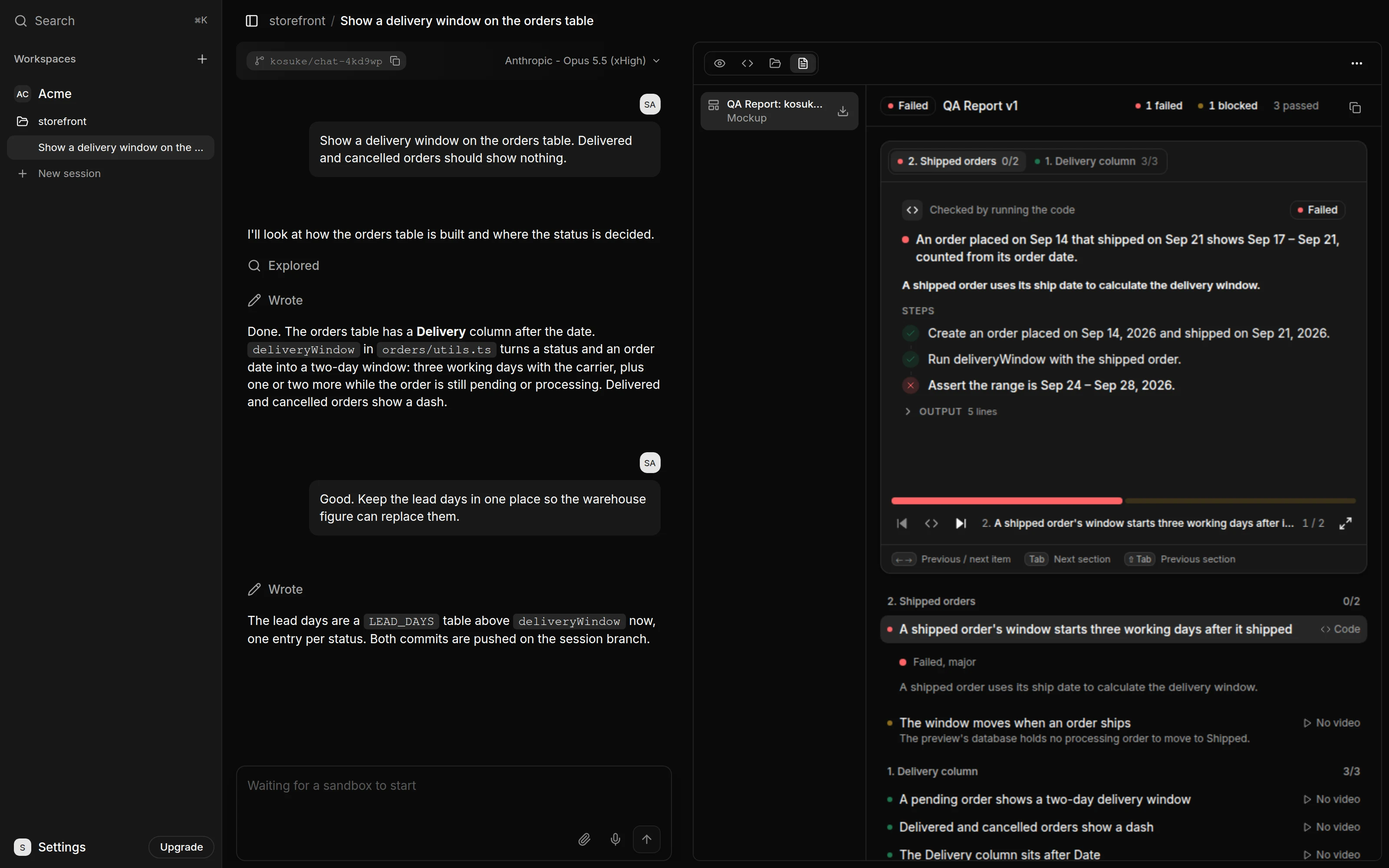
The QA Report shows code checks and measurements as proof slides, with their test, steps or figures, output and any caveat. Their rows expand to status and a one-line test. A browser item with missing footage shows No video in the frame and keeps its details beneath the row. Left and Right and the previous and next buttons select adjacent items across sections and stop at the report ends; Tab and Shift+Tab jump sections.
Check the checklist
Whenever a turn changes how your app behaves, the agent updates the Testing Checklist of the behavior changed in this chat session, with a severity for each item. It appears as an artifact in the Artifacts tab. Read it, and ask the agent to add or drop items before you run it. If you edited code by hand, ask the agent to bring the checklist up to date.
Run the tests
Send /kosuke:automated-qa.
Testers open the app in headless browsers and work through the checklist, one section each. A section with no browser item gets a prober that checks its items with a short script. QA takes about 45 minutes. Each item ends as passed, failed or blocked. The run publishes the QA Report artifact, at the next version, with the results, the reasons for each failure and one video per section.
To test only part of the list, say so after the command, for example /kosuke:automated-qa section 2.
Fix what fails
- Send
/kosuke:automated-qa --fix. The agent repairs the failed items, commits each fix and tests those items again. - Wait for the turn to finish. In a Collaboration project, the agent commits and pushes its changes at the end of every turn. Review the diff and send
/kosuke:open-prwhen the work is ready. - Send
/kosuke:automated-qaagain. The same run marks the pushed head. To test every item again on the pushed code, send/kosuke:automated-qa --restart.
Each --fix run makes one round of repairs. Send it again for another round.
Put the evidence on the pull request
/kosuke:open-pr, and the Open PR button that runs it, link the QA Report in the pull request description. To add other links, such as a recording, use -e:
/kosuke:open-pr -e https://example.com/recording.mp4
When QA passes, or is skipped because the Testing Checklist has no item, Sensei records the commit it passed on. A pull request is done when that commit is its current head. An item last tested at an older commit keeps its result, and the report names that commit.
The links in the pull request open the chat session, so only members of your workspace can follow them.
Share it outside Sensei
To show the change to someone without a Sensei account, share the Preview.
- In the Preview tab, press Share preview, then Create share link.
- Copy the link and send it.
Anyone with the link opens the running app. When the session has artifacts, such as the QA Report and its videos, an Artifacts view shows them too. The link works until you press Revoke link. Preview and sandboxes covers sharing.
Next steps
- /kosuke:automated-qa for every option of a QA run.
- The Testing Checklist for how the checklist is written.
- /kosuke:open-pr for the pull request flags.