/kosuke:automated-qa
/kosuke:automated-qa tests your branch's Testing Checklist against the running app. QA tests what a member would check, on the real app, database and services of the sandbox. One agent takes each section, and several agents run at once. A tester drives a headless browser through the items you can see, and records a video of each section. A prober checks the items a browser cannot show with a short script against the running app. QA takes about 45 minutes. When the time is up, it publishes what it proved and marks the rest BLOCKED with the reason. You get a QA Report in the Artifacts tab, When QA passes, Sensei records the commit it passed on. When the checklist has no item, QA runs nothing and records the commit as skipped.
When to use it
Run it when the agent has finished a change, before you ask for review. Run it again after fixes to test the failed items.
- The session's sandbox runs the app. When the app does not answer, QA tries to repair the environment before it tests.
- The branch needs a Testing Checklist. When there is none, QA writes one first from the branch's diff, the session's artifacts (ticket, plan, prototype) and the conversation.
The Testing Checklist
The Testing Checklist lists what to test on your branch, one action and its expected result per item. The agent keeps it current on its own: before each QA run, and at the end of every turn that changed how your app behaves. Find it in the session's Artifacts tab as Testing Checklist.
The agent skips changes nobody can see in the app, such as documentation, comments and formatting. When the branch changes nothing you can see, the checklist has no items. QA then starts no run. It records the commit as skipped and says why. When you ask for QA on a checklist with no items, QA looks at the branch again first: it adds items for what you can now see in the app and tests them, or skips again and says why. To add, change or drop an item, or to bring the checklist up to date after you edited code by hand, ask the agent in a message.
When the agent updates the checklist, it adds an item for each finished behavior no item covers, favoring edge cases, errors and recovery over the obvious path. It keeps, updates or removes each existing item. When a change can affect an item, it unticks the item and clears any FAILED or BLOCKED tag, so QA tests it again. Its reply names the items it added, updated, reset and removed. Only QA ticks items or marks them FAILED or BLOCKED.
The checklist is grouped in numbered sections. Each section is one flow, tested from one starting point. Each item has a checkbox, a severity, a stable ID, a label and one line with the action and its expected result.
# Testing Checklist

## 1. Save an announcement

- [ ] **[major] [save-twice-quickly] Save twice without a duplicate**
      Press Save two times quickly. Reload the page. One announcement must show.
| Severity | Use it when the defect |
|---|---|
critical | Breaks a core function, loses data or opens a security hole. |
major | Stops an important feature from working as the user expects. |
minor | Is cosmetic or a rare edge case. |
When a result does not show in the app, such as a database row or a sent email, the item names the check that shows it.
Item kinds
An item can start its indented line with a tag. The tag says how QA proves the item.
| Tag | QA proves it by | Shown in the QA Report as |
|---|---|---|
None, or [ui] | Driving the app in a browser and filming it. | The video |
[probe] | Running a short script against the running app, for a result only the data or the order shows, such as an API, a job or a race. | Code |
[bench] | Measuring a count, a size or a time with a short script. | Measured |
- [ ] **[major] [late-webhook-keeps-state] A late webhook keeps the newer status**
      [probe] Replay a webhook older than the stored one. The status must not change.
The tag is part of the item's text. When you change it, QA tests the item again.
An item that needs macOS, such as one for the desktop app, runs on a real Mac the session may use: a workspace device, with no approval, or a personal Mac its owner approved for the Turn that runs QA. The approval ends with that Turn: a later Turn asks again. QA records the Mac's screen while the item runs, and the item plays its video like a browser item. The Mac needs the Sensei desktop app with the Screen Recording permission. Without it, or when the recording fails, the item still gets its result and says why it has no video.
QA tests on the real services of the sandbox. When a test can only pass by faking what the item claims, such as a fake server in place of a provider, the item is BLOCKED and the reason says what was faked. The agent keeps your repository's own rules and your request first. When they require a test in the code, it adds that test too.
Run it
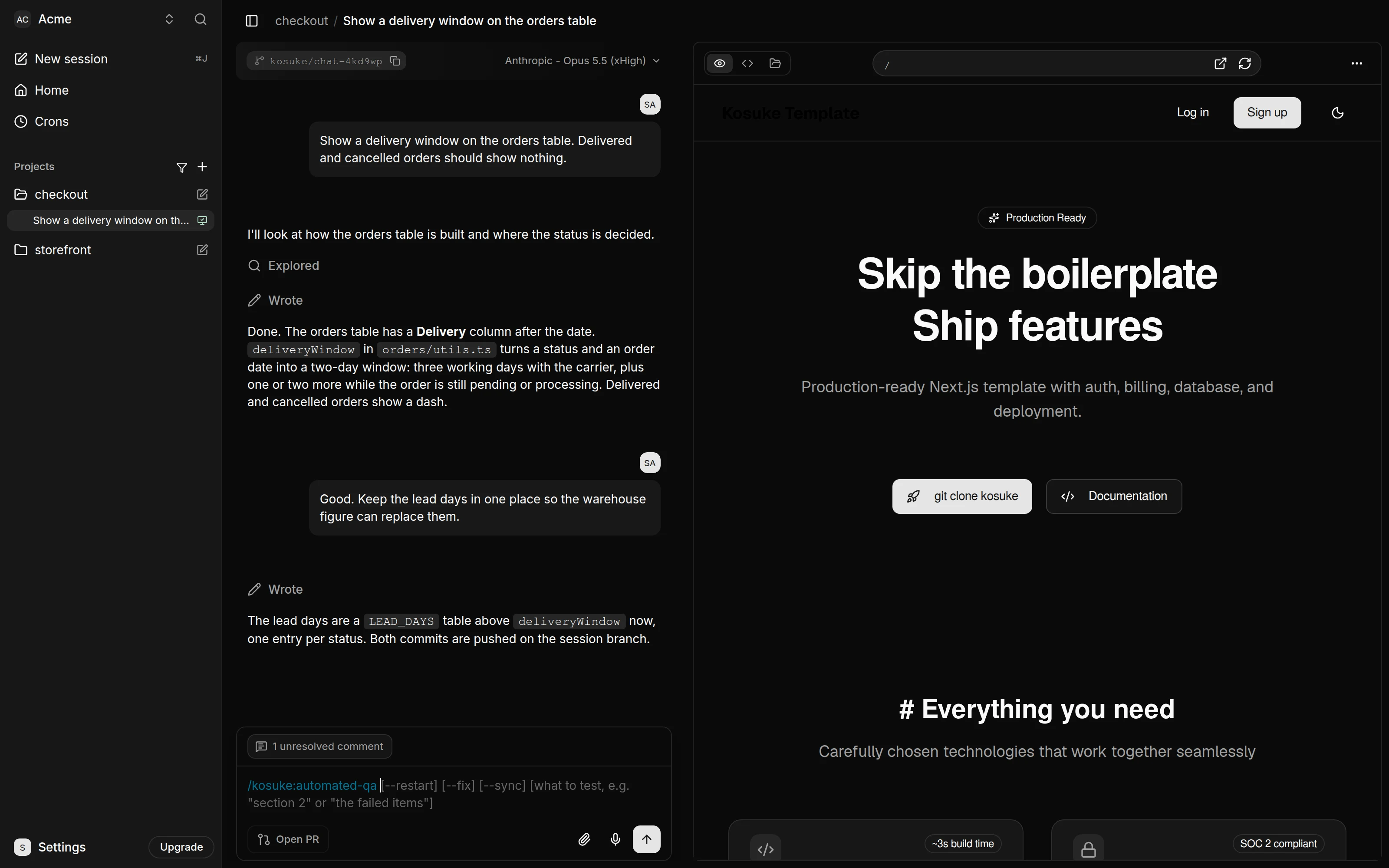
Type /kosuke:automated-qa, or $kosuke:automated-qa in a Codex session.
The Review & QA button in the chat sends /kosuke:automated-qa --fix after /kosuke:review, so QA tests the code the review already fixed. The button shows once the branch has work: changes, commits, or an open pull request. When the checklist has no items, the button runs only the review. Its menu runs QA alone, also with no checklist or an empty one.
| Argument | What it does | Default |
|---|---|---|
| What to test | Tests only what you name, such as section 2 or the failed items. Behaviors you name that no item covers are added to the Testing Checklist in your words, then tested. | The items not tested yet. After the code changed, the failed and blocked items too. On a new sandbox, the failed items too. |
--restart | Starts a new QA Run, tests every item again and starts the QA Report over at v1. | Continues the newest run, or starts a new one when the code changed since |
--fix | Repairs the FAILED items once testing ends, then tests again only the items the repair touched. Each time you run it, it makes one repair round. | Off |
--sync | Tests only what a sync merge can affect, and carries the rest from the commit QA last passed on. A run on a merge commit does this without the flag. | Off |
/kosuke:automated-qa
/kosuke:automated-qa section 2
/kosuke:automated-qa --restart
What it does
- It picks the checklist and the items to test.
- It checks that the app answers and reads the Project QA Guide, which says how to open the app, sign in and check its data. When no guide exists, it works one out first, so the first run in a project takes longer.
- It starts one agent per section. A section with a browser item gets a tester, which also checks the section's
[probe]and[bench]items. A section with none gets a prober. Each tester drives a browser, records a video and marks every item it tests. Each prober runs a script against the running app and marks its items. - It updates the checklist and the QA Report as each section finishes.
- With
--fix, it repairs the failed items and commits one fix per section. The section's agent continues, with what it learned of the section, to retest the items the fix touched. For a tester, the new footage replaces that part of the section's video. Every other result stays. - It finishes the run with
kosuke sessions qa runs finish. When the whole checklist passed at the sandbox's HEAD and no tracked file has uncommitted changes, Sensei records the commit QA passed on.
A prober never opens a browser and never changes your working tree. It writes one short script for each item, runs it once against the running app, and keeps the script in the QA Run, never in your repository. An item gets one retry, only for a flake or an environment QA repaired.
QA works for about 45 minutes, and the fix round counts in that time. When the time is up, it starts nothing new, publishes what it proved and marks the rest BLOCKED with the reason QA time budget of 45 minutes used up before this item ran..
Each item ends in one of three outcomes:
| Outcome | Meaning |
|---|---|
| Passed | A tester watched the expected result happen, or a script showed it against the running app. The item is ticked. |
FAILED | A tester watched it not happen, or the script failed on your branch. The item is tagged with the reason. |
BLOCKED | QA could not reach the state the item needs, could only test a fake of what the item claims, or ran out of time. The item is tagged with the reason. QA never changes the item or its check to make it pass. |
What a pass means for a code check
A [probe] or [bench] item gets a short script against the running app. The script reads the result a member would check, such as the saved row or the file in the sandbox. A queued job only proves that it was queued, so the script waits for the end state.
The prober checks once that the script can fail. It breaks the line the script tests in a scratch copy of the code, or runs the script on the base, and sees it fail. When that costs too much, the item shows a caveat that says why QA skipped the check.
What you get
The QA Report is an Artifact titled QA Report: <branch>, headed QA Report v3. A branch has one: every run on the Testing Checklist publishes over it, so you open the same report each time. Its version counts the QA Runs since the last --restart. From v2 on, the Artifacts tab shows it under the title. It opens on its verdict and one player, and follows Sensei's light or dark theme.
The player has a tab for each section, with failed and blocked sections first. Under the frame, a bar holds one step for each item that has a result. Select a filmed item to play its footage and read the tester's action. What the tester saw is under it, closed until you open it.
Select a code check or measurement to see its proof in the same frame. Its row expands to the status and one-line test:
| Kind | The slide shows |
|---|---|
[probe] | What was tested in one sentence, the steps that ran, and the output the check recorded. |
[bench] | What was tested, each figure before and now with the change in words, and the output. |
| A browser item with no video | No video in the frame; what the tester did and saw beneath its row. |
| A Mac item with no video | Checked on a Mac, no video, why it has no video, and what the tester did and saw. |
| Not passed | One sentence on top that says why (failed, blocked, or needs another test). Then the same test and steps. |
The output starts closed. Once you open it, the next items you move to open theirs too. A caveat adds one line, such as the reason QA did not check that the script can fail. The slide leaves out exit codes and commits. A row shows the video time for a filmed item, and Code or Measured for the rest.
Move through the report with these keys:
| Key | On a video | On a slide |
|---|---|---|
| The previous and next buttons | The previous or next item | The previous or next item |
← → | The previous or next item | The previous or next item |
Space | Play or pause | Nothing |
Tab ⇧ Tab | The next or previous section | The next or previous section |
Previous and next go across section boundaries and stop at the report ends, even when a video has already played for more than a second. Left and Right work the same way when a section tab has focus. Home and End on a tab select the first or last section. When a filmed item ends, the player plays the section's next filmed item and stops before a slide.
On a phone the previous and next buttons are not shown. Tap a segment of the progress bar to jump to an item, tap the left or right third of a video, or tap the left or right half of an item's panel, to go to the previous or next item. The tap crosses section boundaries like the buttons. Links, buttons and the Output toggle in the panel keep their own tap, and a text selection, a drag or a long press does not count as a tap. The section tabs, the progress bar and the arrow keys still work.
After a sync, the reply says what ran again and what was carried.
An item a run did not test keeps the evidence and video of the run that last tested it, marked Tested in v2, until its checklist text changes. --restart publishes v1 with only that run's evidence.
An item last tested at an older commit keeps its result. The report row and the slide say Verified on older commit with that commit, and the reply lists each such item. Nothing blocks on it, browser items included. This is what you see after a fix commit, because the run retests only the items the fix touched.
The Testing Checklist is the only checklist QA tests. A run on a few named items records a pass only when the whole checklist passed at the current head. The reply gives the counts, each failed and blocked item with its reason, anything a tester noted, and the commits --fix made.
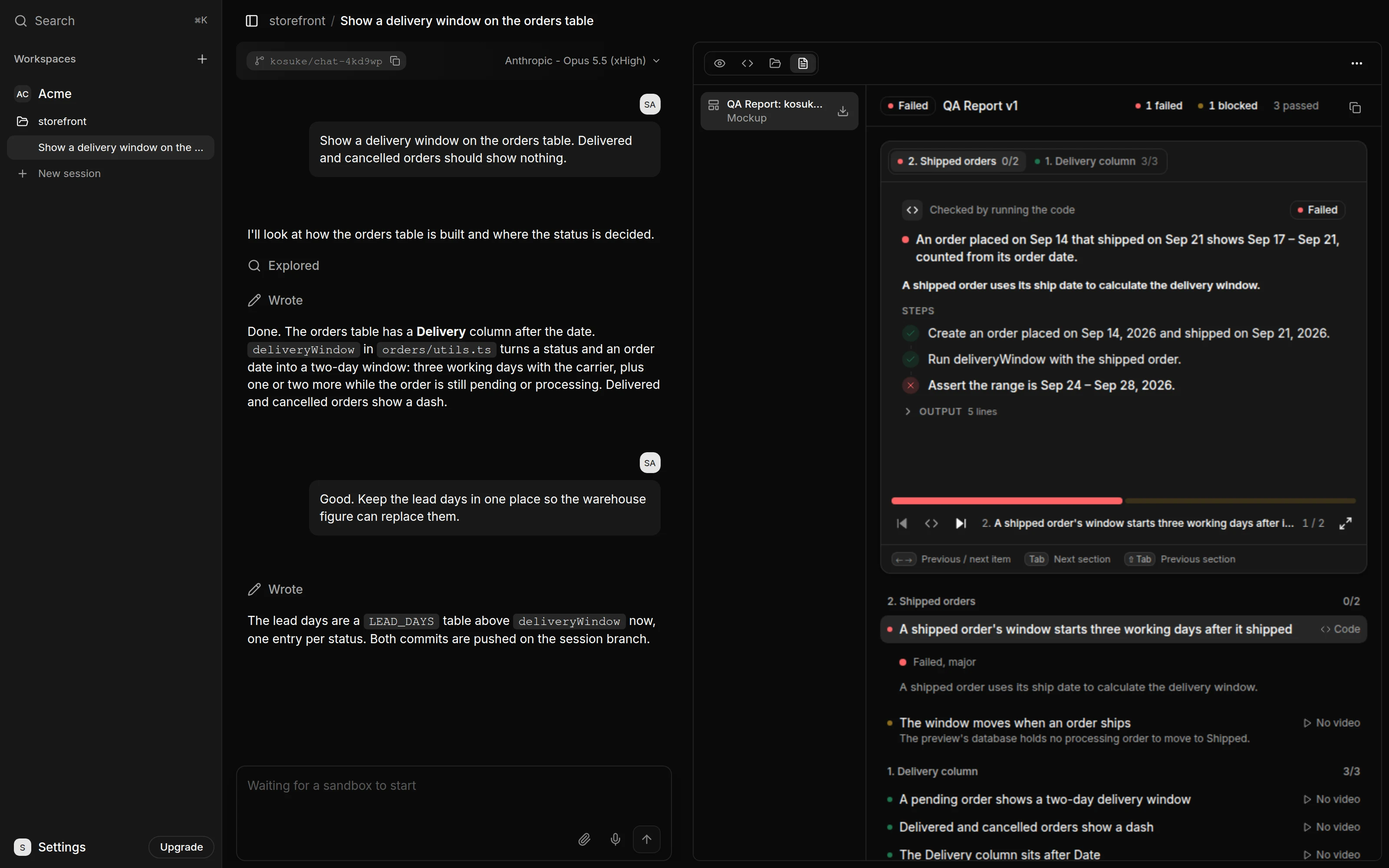
The result counts the items this run tested and any item still tagged FAILED or BLOCKED:
| Result | When |
|---|---|
| Passed | Every item this run tested passed, or every item already passed and no change since marked one for a retest. |
| Blocked | No item failed, and at least one could not reach the state it checks, such as a missing seed user or a token without a permission, or QA ran out of time before it tested the item. |
| Failed | At least one item this run tested failed, whether or not others were blocked. |
| Skipped | The Testing Checklist has no item, so nothing was tested. No QA Report is published. |
When QA passes or is skipped, Sensei records the commit it passed on, from what it stored of the run and what it reads of the sandbox's checkout. The agent cannot record a pass itself; you can set one by hand with kosuke sessions qa set. A pull request is done when that commit is its current head, so a later push needs QA again. In a Collaboration project, the agent pushes the commits a --fix run makes at the end of the turn, so the head matches.
On a new sandbox
When the session gets a new sandbox, Sensei writes back every artifact of the session, the Testing Checklist included. Its ticks and their FAILED and BLOCKED tags come back with them.
Sensei keeps each QA Run, so the next /kosuke:automated-qa continues the newest one when the branch is still at its commit, and otherwise starts a new run that carries the earlier evidence. It tests the items not tested yet and the FAILED items, with --fix too. Ticked items stay ticked, and BLOCKED items wait until you name them.
The QA Reports and videos stay in the Artifacts tab. A session whose reports were numbered before they were versioned keeps those, and the next run starts the one QA Report at v1.
The Project QA Guide
To test a project, QA has to know how to open the app, sign in and read its data. The first time it tests a project, it works this out and writes it down as the Project QA Guide. The guide stays under 15,000 characters. When it grows past that, QA cuts it back to what holds on any branch. The guide appears as an Artifact titled <project> Project QA Guide, and QA sends it to the chat session's Assignee as a message to their Sensei, holding the whole guide and the revision it started from. Sensei draws a card that shows the whole guide, and the guide reaches the project only when they approve it. Sensei then saves it, and the save is refused if the saved guide changed since that revision. When a later run proves a step in the guide wrong, for example after a sign-in change, QA sends the fix the same way, and the card the Assignee already has for it is updated instead of a second one added. A recipe that only one branch needs goes in that run's QA Report and never in the guide. The run's reply says when it sent a guide change, or why it did not, for example when the Assignee has no Sensei.
A guide you approve reaches the chat sessions created after it, like every other project setting. If a member changed the saved guide after the run read it, nothing is saved and Sensei says so. Sessions already running read the current guide at the start of each QA run.
To read or change the guide yourself, open the project's settings and go to Advanced. Keep secrets out of it: name the environment variable that holds a secret, not its value.