Project settings
Project settings hold what Sensei needs to run your repository. They cover the sandbox size, the services, the environment variables, the branches and the setup scripts. The deploy agent fills them in on the first deploy. To change them, open the repository: its page is its Repository settings. An App keeps its chat on its page, so press Settings (the gear) in its header, or pick Settings from its menu in the sidebar. A phone shows no gear in the header, so use the sidebar menu there.
The page shows the Deploy Chat on the left and the settings panel on the right. The panel is titled Repository settings. Its tabs are Sandbox, Services, Environment, Advanced, Logs, GitHub and Labels. An App has no Labels tab. Every member who can open the project can change them.
Before the first deploy, the panel is locked, because the deploy agent writes it. Press Edit manually to unlock it.
When a change takes effect
Most sections save when you press their Save button. A sandbox tier saves as soon as you pick it.
After a change, press Redeploy in the Deploy Chat's message box. The project's main sandbox uses the saved settings only after a redeploy. New sessions usually start with the saved settings at once. A session can instead pick up a sandbox Sensei prepared before the change. That session keeps the old tier and the services already running, even after a redeploy. A redeploy also replaces the sandboxes Sensei keeps ready for new sessions. It does that last, after the main sandbox is up. Once the main sandbox is up, a new session never takes an old one. Until the Deploy Chat's Warming N more sandboxes line finishes, a new session boots a fresh sandbox, which starts slower. If it shows Warming N more sandboxes failed, new sessions keep booting fresh sandboxes until Sensei refills the spares. Sessions already running keep their old settings too. Deploy your project explains what a redeploy does.
When you save a change to the Sandbox, Services or Environment settings, or to the Warmup Script under Advanced, the project page shows a Redeploy needed banner under its header. Every member sees it, in the Repository settings and in an App's chat and settings, and it stays after a reload. Press Redeploy in the banner to start a deploy, or use the Redeploy button in the Deploy Chat's message box. The banner goes away as soon as a deploy starts. If the deploy fails or you stop it, the banner comes back, so you can redeploy again. After a successful deploy it stays away. Save a setting back to its deployed value and the banner goes away too. The Agent Working Directory, the branch settings, the QA Guide, Labels and the Deploy model show no banner. Before the first deploy there is no banner, because the first deploy applies the settings.
Sandbox
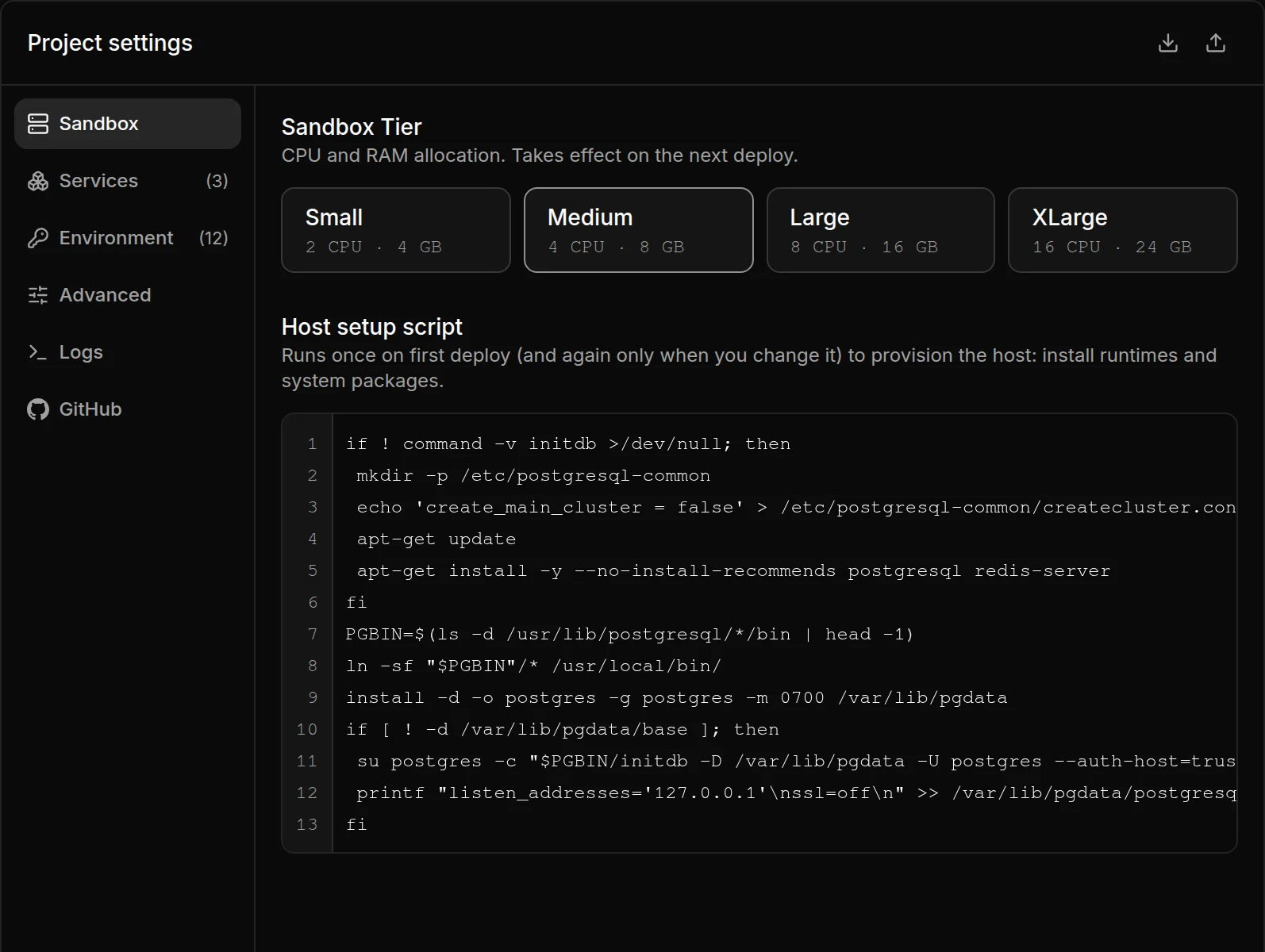
Sandbox Tier sets the CPU and memory of the project's main sandbox and of every chat session's sandbox. A new tier reaches the main sandbox on the next deploy. New sessions usually get it at once, as When a change takes effect explains.
| Tier | CPU | Memory |
|---|---|---|
| Small | 2 | 4 GB |
| Medium | 4 | 8 GB |
| Large | 8 | 16 GB |
| XLarge | 16 | 32 GB |
The first deploy boots XLarge, and the agent then sets the tier the project needs. A larger tier costs more per hour. Plans and billing lists the rates.
In a chat session, everything the agent starts shares 60% of the sandbox's memory: its builds, type checks, tests and browsers, and its Delegated Runs. The services, the database and Sensei's own server sit outside it, so the agent's work cannot take the rest; the ceiling does not promise your services fit in that rest. When the agent's work passes the ceiling, the sandbox stops a process inside it. Usually that is the heavy command, and the agent sees it fail. When it is the agent itself, the turn stops with Sandbox out of memory. To change the share for one project, set the environment variable KOSUKE_COMMAND_MEMORY_PERCENT to a whole number from 10 to 90, or to off to remove the ceiling. It applies from the next session.
Each service can use at most three quarters of the sandbox's memory, and so can all its Docker containers together. A service that passes that limit is stopped and starts again. When the whole sandbox runs low on memory, it stops its largest process within seconds instead of freezing: a service, a container or something the agent runs, never Sensei's own server while anything else is left. If that process is the agent, the turn stops with Sandbox out of memory.
When you set KOSUKE_COMMAND_MEMORY_PERCENT to a number, your services that run as processes also share one ceiling together: what the agent's share leaves, minus 5% for the system, and never under 25%. With 45% for the agent, the services get 50%. A dev server that keeps growing past it is stopped and started again, rather than freezing the sandbox. Services that run as a Docker stack are outside it. Without the variable, or with off, the services have no shared ceiling, only each service's own limit.
The agent's helper agents (Delegated Runs) and the browsers it opens also share a small number of work slots, about 2 GB each: 4 on XLarge, 3 on Large, 2 on Medium and 1 on Small. A helper agent holds a slot while it runs, and a browser until it closes. What a helper agent starts itself uses that agent's slot. A test run or build takes a slot when it runs through ksb slot run -- <command>. When every slot is taken, or the sandbox's memory is more than 75% used, the next one waits and says why. After 20 minutes it gives up without running.
The Host setup script installs runtimes and system packages, such as a database server. It runs on the first deploy, and again only after you change it.
Services
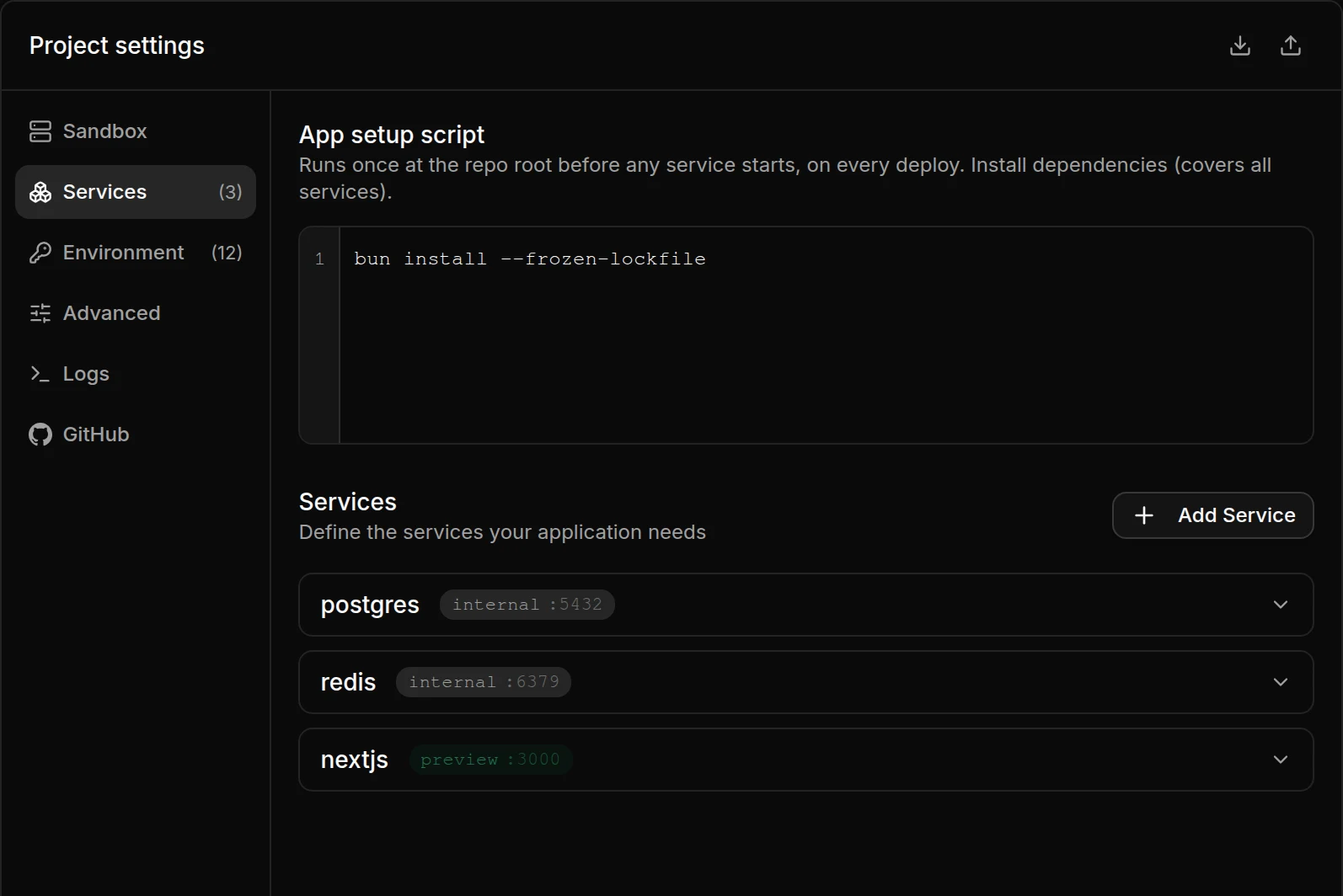
A service is anything that runs, such as an app, a worker or a database. Press Add Service to add one, or press a service's row to open it.
The App setup script at the top of the tab runs once at the repository root before any service starts, on every deploy. Put dependency installs there, such as bun install.
A new chat session often starts on a pool sandbox that ran the script at an older commit. Sensei skips the script there when the newer commit changed none of these: a lockfile, a dependency manifest, a toolchain version file, an env file, a migration, a seed, a schema file, or a folder a package.json names as a file: dependency. When the script also generates code from your source, set rerunSetupOnCheckoutMove to true with kosuke projects settings update <projectId> --rerun-setup-on-checkout-move or in kosuke.config.json, and the script runs on every such start. The web app has no switch for it.
| Field | What it holds |
|---|---|
| Name | Required. Lowercase letters, digits and inner hyphens. |
| Directory | The folder the service runs from. Empty means the repository root. |
| Start command | Required. The command that starts the service. It must listen on its first endpoint's port. |
| Stop command | Optional. The command that stops it. |
| Docker stack | Tick it for a multi-container stack run with Docker Compose. The start and stop commands become its up and down commands. |
| Env files | Docker stacks only. The paths the environment variables are written to. Defaults to one .env. |
| Endpoints | The ports the service listens on. A service with none runs in the background. |
| Depends on | Services that must be ready before this one starts. |
Each endpoint has a Name, a Port, an Exposure and a Health route.
| Exposure | Where it is reachable |
|---|---|
| Internal | Only inside the sandbox. It gets no URL. |
| Public | At its own URL in a browser. It stays out of the Preview tab. |
| Preview | At its own URL, and it shows in the Preview tab. |
List a service's main endpoint first. Sensei checks it to decide the service is ready, and {{name.url}} points to it. The Health route is an HTTP path such as /api/health that Sensei requests for that check. Leave it empty for a database such as Postgres or Redis.
Press Save on the service, or Add Service for a new one. Delete removes it.
Environment
Environment variables reach every service when it starts.
- Press Add Variable and fill in Name and Value. To add many at once, press Import .env, drag a
.envfile onto the tab, or paste severalKEY=valuelines into a field. - For a password or key, press the lock icon to mark it secret. A secret value stays hidden until someone presses the eye icon beside it.
- Press Save Variables.
A value can point at a service instead of a fixed address. Type {{ in a value field to pick one.
| Placeholder | Becomes |
|---|---|
{{name.url}} | The public URL of the service's first endpoint. Only for Public and Preview endpoints. |
{{name.url_int}} | The address inside the sandbox, such as http://localhost:3000. |
{{name.endpoint.url}}, {{name.endpoint.url_int}} | The same for an endpoint other than the first. |
For example, with a nextjs service on port 3000 and an api service on port 4000:
NEXT_PUBLIC_APP_URL={{nextjs.url}}
API_URL={{api.url_int}}
DATABASE_URL=postgresql://postgres@localhost:5432/app
Sensei fills in each placeholder when a sandbox starts. Every sandbox has its own public URL, so each session gets the right one. Placeholders always give a web address, https:// for url and http://localhost for url_int, so write database connection strings out in full.
Advanced
| Setting | What it does | When empty |
|---|---|---|
| Agent Working Directory | The folder, relative to the repository root, where the agent works. Use it when the app lives in a subfolder. | The repository root |
| Branch tasks from | The branch new tasks start from. The main sandbox follows it too. | The repository's default branch |
| Open PRs against | The Target Branch. Pull requests open against it, and Sync brings it in. | The repository's default branch |
| Warmup Script | Runs after the services are healthy. Use it to request the busiest pages so the Preview loads fast. | Nothing runs |
| QA Guide | How to test the project in a sandbox: which service to open, how to sign in, how to read its data, and the traps to avoid. QA keeps it under 15,000 characters and puts a recipe that only one branch needs in that run's QA Report. /kosuke:automated-qa sends it the first time it tests the project and reads it on every run; the guide is saved when the task's Assignee approves the card their Sensei draws for it. You can edit it here. A change reaches the tasks started after it, with no redeploy. Tasks already running read the current guide at the start of each QA run. The deploy agent never changes it. | QA works it out on its first run and sends it to the Assignee's Sensei |
The two branch settings sit under Branch Overrides and share one Save button. The QA Guide has its own Save button and holds up to 102,400 characters. Keep it short: what QA writes stays under 15,000.
Logs
The Logs tab streams the main sandbox's logs. Pick Full logs, Setup, or one service. While a deploy runs, it shows the deploy's sandbox instead. Open it first when a deploy fails.
GitHub
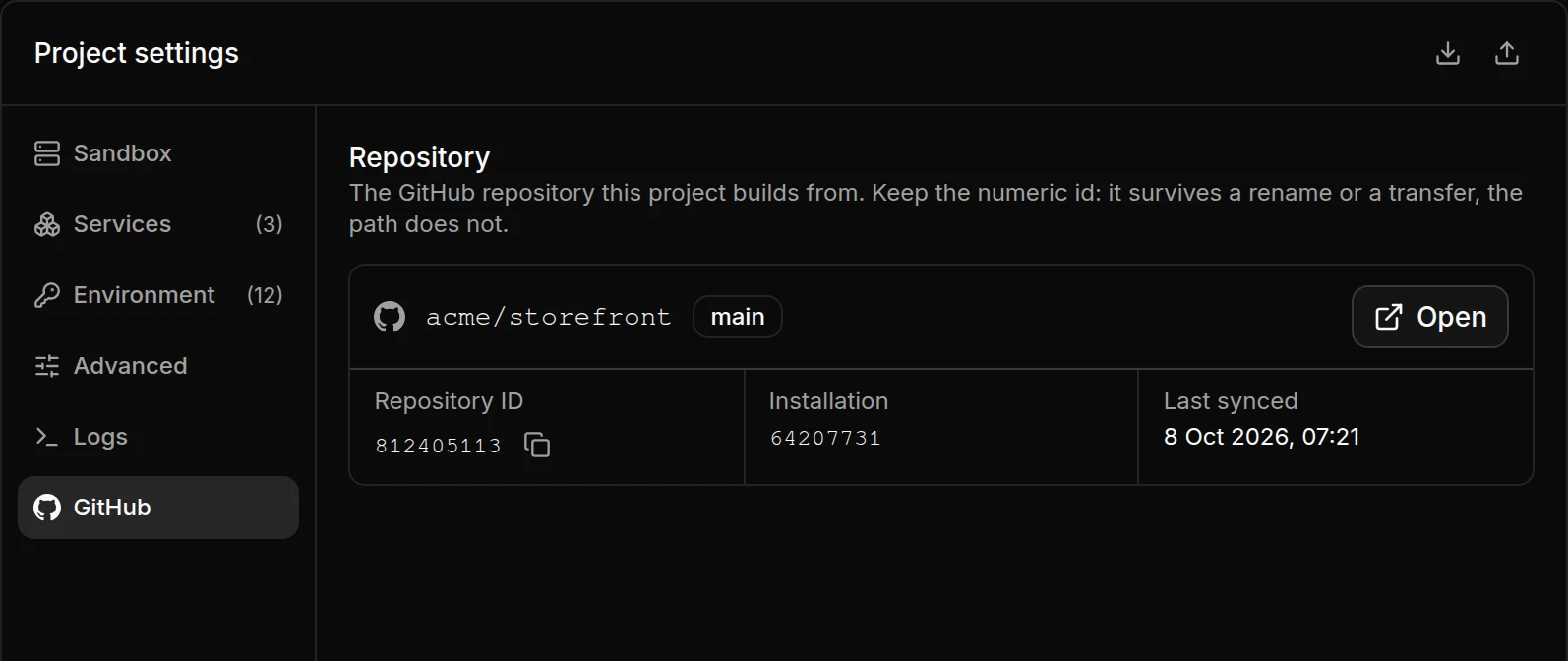
The GitHub tab shows the repository the project builds from. How pull requests merge is under Merge agent.
Merge agent
Each repository has one merge agent. A new project starts with it Off: pick Merge train or Batch merging under Mode to turn it on. It merges the pull requests a member gave the go-ahead into the project's Target Branch, which is the default branch unless you set one under Advanced. It merges only a commit that has the go-ahead and whose QA passed, as the Kosuke GitHub App. Its runs are chat sessions the agent owns: they stay in this section, off the Tasks board, the session lists, Needs you and search.
The agent is woken by events, never on a timer: a go-ahead opens a run, and while one is open it takes a short turn when a check finishes, a pull request it holds is approved or merges, or a session it asked to sync ends its turn. It ends the run when nothing waits.
The page is titled Merge agent, with a small Docs link. One box holds its settings. Mode is the only control: Merge train, Batch merging or Off. Under it, two facts you read but do not change: whether GitHub's merge queue is on for the base branch, and Merges as Kosuke GitHub App. A note shows while the mode changes. If the change fails, the note says so, with Try again. With the merge train picked, it says Merge train is on. When a Batch is running, that Batch finishes first.
Pipeline
Below the box, Pipeline, in go-ahead order shows where each pull request is.
The Batch has its own full-width row first. It shows the Batch's name and a badge: Now, Finished or Stopped. A stage bar reads Build, QA, Merge, Done. One status line says what happens now. Small links open the Batch pull request and the run (Open run). With no Batch, the row says No Batch running. When the Kosuke GitHub App cannot merge in the repository, the badge reads Stopped and the row says to fix the access on GitHub.
Then four lanes of pull request cards:
- Waiting: someone acts first. The pull request is a draft, QA has not run at its head, or it has no approval. Failed ones wait here too: QA did not pass at its head, or a review asked for changes.
- Ready: it goes in the next Batch.
- In a Batch: the running Batch carries it.
- Done: Merged or Ejected.
Each card shows the title, then one line with the reason for Waiting, Failed and Ejected, then the assignee, the pull request number and one state word. The Tasks board card shows the same word for the same pull request. The first state that fits wins: Merged, Ejected, In a Batch, Waiting, Failed, Ready. Click a card to open its task. Cards do not expand.
Earlier Batches (Earlier runs with the merge train) is a row you open to list the last runs. Every earlier run, newest first, a page at a time, with its number, session, pull request, state and dates, is listed by kosuke projects merge-agent runs list (pass the nextCursor it answers as --cursor for the next page); kosuke sessions get reads a run's session. Open a run to read its transcript in the chat column: switch the chat header from Deploy to Merge agent, and write to steer it, for example "merge #2961 before #2958". While the run's turn is working, what you send waits in Up next under the composer, as in a task's chat: edit, reorder, delete or send it from there. When the running turn is yours and its model takes a steer, press Steer now on a queued message to send it into that turn; ⌘Enter (Ctrl+Enter) in the composer does the same while the run on screen is the open one, since a message to a finished run opens a new run. A turn the app started is nobody's to steer, so a message sent then waits for the turn to end. It never merges a commit nobody gave the go-ahead.
Merge agent model
The model picker in the Merge agent chat header chooses the model and effort its runs start on, such as Claude Opus (High). It offers what the Deploy model offers: a workspace's Credentials, or a personal project owner's Subscriptions. Default, where every project starts, runs each new run on the Default Model, as a task left on it starts. While a run is open, the header shows the model that run runs on, and a pick applies to the next run: the open run keeps its model. Every earlier run shows the model it ran on. In the CLI, run kosuke projects merge-agent model set <projectId> --model anthropic:opus__high, or --model default; kosuke projects merge-agent get returns the model as model and each run's as run.model.
Merge train
With Merge train, the agent merges one pull request at a time in an order it chooses. It updates a branch that is behind, sends /kosuke:sync-branch to the session of one that conflicts, waits for a required review, and enqueues instead of merging when the branch has GitHub's merge queue. The repository's settings decide the merge method. When a step needs a person, it messages the pull request's Assignee in Sensei.
Batch merging
With Batch merging, the agent runs /kosuke:batch-merge instead: it decides whether a Batch is worth running now, picks the pull requests with the go-ahead whose QA passed, merges them together into one Batch pull request, reviews its own conflict resolutions and runs a short QA. An admin approves the Batch pull request and Sensei merges it. A pull request the Batch leaves out goes back to its own session with the reason, and its card shows Ejected. Batches run as the member who picked Batch merging. Each task still runs /kosuke:review and QA in its own session. Once the Batch pushes its draft, one next Batch can build on it while it waits; the next stays a draft until the current Batch merges.
A Batch does not start when the member Batches run as has left. A Batch that merged nothing is not started again for the same pull requests for an hour. The next one starts sooner when a pull request changes, its QA passes again, it gets a go-ahead, or another one waits.
Off
With Off, the mode a new project starts in, Sensei merges nothing in the repository: no merge train, no Batch, and nothing added to GitHub's merge queue. A go-ahead, a finished check, an approval or a merge wakes nothing, and members merge their pull requests themselves. A note under Mode says so, the pipeline is hidden while no run is open, and the chat column cannot start a run. If a run is open when you switch to Off, it is not abandoned: a Batch finishes or ejects as it would have, and takes in no new pull request; a merge train run stops merging and ends. No run starts after it. Switch back to Merge train or Batch merging and a run starts at once for the pull requests that wait with a go-ahead.
The mode saves as soon as you pick it, needs no redeploy, and the lock before the first deploy does not apply to it. An App has no Merge agent, because it saves straight to its default branch. From the CLI, kosuke projects batch-merging get <projectId> reports the mode (train, batch or off), and kosuke projects batch-merging set <projectId> --mode off switches it.
Repository
The Repository block shows the repository the project builds from. It has the repository's path, its default branch, and an Open button that opens it on GitHub. Below it are the Repository ID, the Installation and Last synced. Last synced is the time of the last push to the branch sessions start from.
The Repository ID stays the same when the repository is renamed or transferred on GitHub.
Labels
The Labels tab lists the repository's Session Labels, each with a color dot and a Delete button. It is the last tab, and it is not shown for an App.
- To change a label's color, click its dot and pick a swatch or type a hex value.
- To delete a label, press Delete. The confirmation lists the tasks that carry it, archived and completed included. Tick the box to remove the label from them, then press Delete label. Labels live only in Sensei, so nothing changes on GitHub.
You cannot create a label here. A label appears once a task gets it. See Labels.
The Labels tab is not part of the exported or imported config. The lock before the first deploy does not apply to it.
Export and import the settings
The two icons at the top right of the panel move the whole configuration as one file in the kosuke.config.json format.
- Export config downloads it as
<project name>.config.json. The file includes the QA Guide asqaGuide. - Import config reads such a file into this project. Sensei checks it first and lists any problems in an Errors tab. A valid file opens the Import Configuration dialog, which warns that it replaces all existing settings. Press Continue, then Redeploy.
The exported file holds every environment variable's value, secrets included. Keep it out of your repository.
Rename or delete a project
In the sidebar, press the project's menu (...) or right-click the project.
- To rename it, choose Rename, type the new name and press Save. Any member can rename a project. The GitHub repository keeps its name.
- To delete it, choose Delete Project and confirm with Delete Project. Only owners and admins see this option. Deleting removes the project and all its data from Sensei for good. Your GitHub repository stays as it is.
Limits
- In the phone layout, on an iPhone or in a narrow window, project settings show "Open this on a computer" instead. See Desktop app and mobile.
- An import replaces every existing setting, except the sandbox tier and the QA Guide when the file leaves them out.
- A placeholder that matches no service endpoint stops the sandbox from starting.