Open a pull request
When the work is ready, press Open PR in the chat footer. The agent commits anything pending, pushes the branch and opens a pull request against the Target Branch. A pull request that is ready for review moves the session to Under Review. When you merge it on GitHub, the session moves to Completed.
Open the pull request
- Check the work in the Preview and in the Changes tab. See Review the changes.
- Press Open PR in the chat footer.
- Read the agent's reply. It links the pull request and says which branch it targets, whether it is a draft, and which reviewers it asked for.
If the agent is working when you press it, the request waits Up next and runs after the current turn. Your unsent message in the composer stays where it is.
Open PR appears once the branch has commits on GitHub and none left unpushed. If a commit is still unpushed, ask the agent in the chat to push it or to open the pull request.
What the agent does
Open PR runs as an ordinary turn. It sends /kosuke:open-pr, or $kosuke:open-pr on a Codex session. A Custom or Personal Skill named open-pr never takes its place.
- It commits and pushes the pending work.
- It writes a title and a description with a summary of the changes. The title also becomes the session's title.
- It opens the pull request ready for review. If one is already open for the branch, it updates that one instead.
To open a draft, request reviewers or add evidence links, type /kosuke:open-pr ($kosuke:open-pr on a Codex session) with its flags, as /kosuke:open-pr describes.
Draft or ready for review
The pull request's state on GitHub decides where the session sits.
| Pull request | Session |
|---|---|
| Ready for review | Under Review |
| Draft | Active |
A draft keeps the session Active, so you can keep working with the agent. When it is done, press Ready for review in the chat footer. Sensei marks the pull request ready on GitHub and the session moves to Under Review. Changing the draft state on GitHub moves the session the same way.
Under Review and Resume
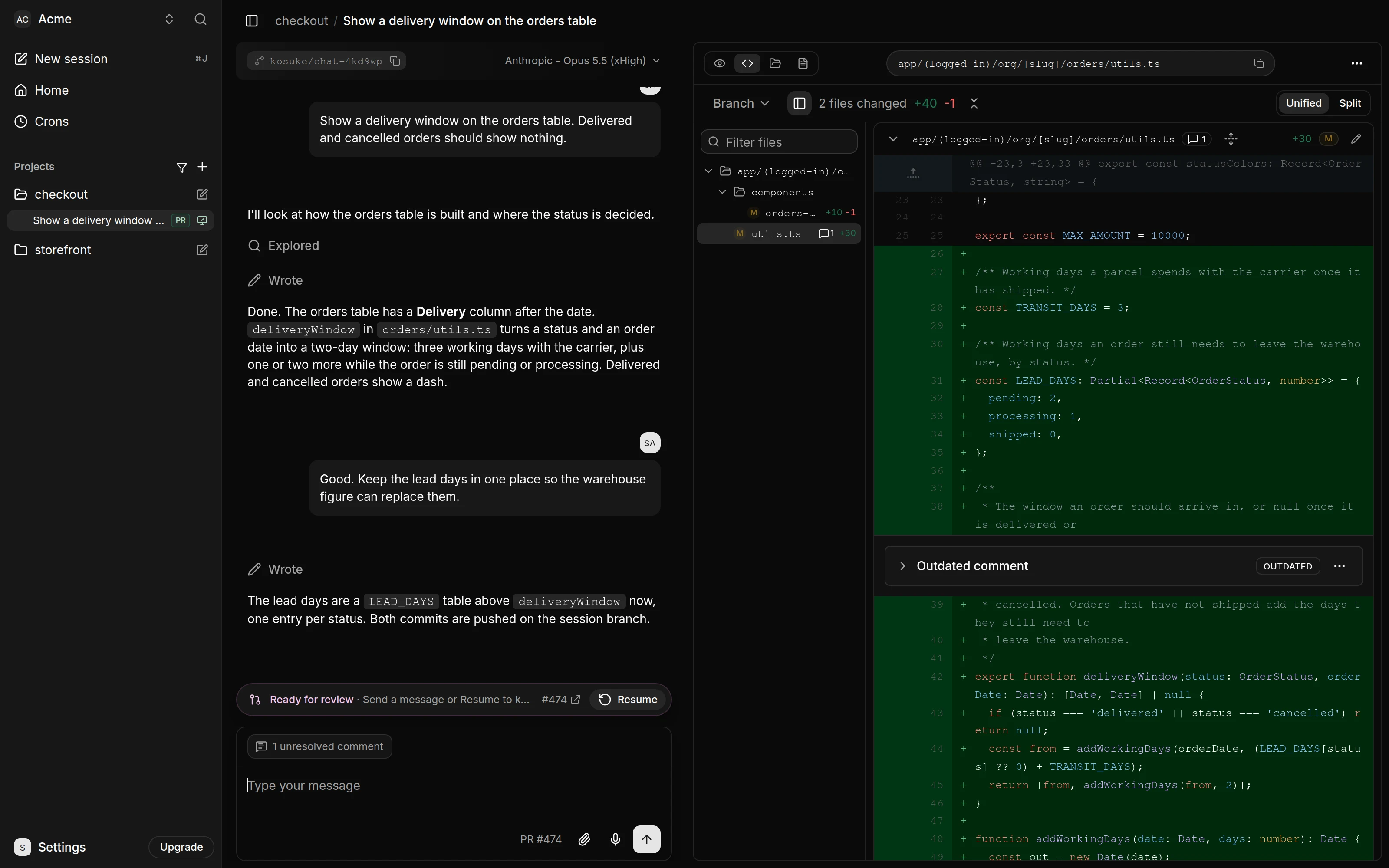
A banner above the composer reads "Ready for review" with a link to the pull request and a Resume button. A turn already running finishes, and messages waiting Up next pause.
To keep working, send a message: it goes out and the session stays Under Review until the agent turns the pull request back into a draft to change it. Press Resume to turn the pull request back into a draft and move the session to Active yourself.
Where it targets
The pull request opens against the Target Branch. That is the branch in Open PRs against, in the Advanced tab of the project settings. When that setting is empty, it is the repository's default branch.
If the setting changes after a pull request is open, the agent asks you whether to move the pull request the next time it updates it.
Whose GitHub account opens it
The pull request comes from the GitHub account of the member who pressed Open PR, when they have a GitHub Connection. Otherwise the Kosuke App opens it, and the description names who asked for it. Ready for review, the Resume button and a card drag act on GitHub the same way. A message that resumes the session converts the pull request as the Kosuke App. The agent says in the chat which account it is about to use.
If GitHub refuses your account because you cannot write to the repository, the agent opens the pull request as the Kosuke App and tells you. You connect GitHub in Settings > You > Integrations, as Import a repository describes.
Changes at the end of a turn
In a Collaboration project, the agent commits and pushes its changes through the repository's hooks at the end of every turn. A file it leaves out stays in the sandbox, and the agent says why. An open pull request updates after every turn.
Review the diff and press Open PR when the work is ready.
Follow the pull request
The session carries a PR badge in the sidebar and on its card on the Tasks page. Its color sums up the pull request. Hover it for the details, such as "Checks passed (3)" or "Conflicts". The first row below that applies sets the color.
| Color | Summary | Means |
|---|---|---|
| Red | Changes need attention | Checks failed, or the pull request has conflicts. |
| Amber | Changes are waiting | Checks are running or pending, GitHub reports non-passing checks (unstable), or the branch is behind. |
| Green | Ready to finish | GitHub reports the pull request mergeable with nothing blocking it, and it is not a draft. |
| Pink | Under review | The session is Under Review. |
| Grey | Draft or Status unavailable | A draft with nothing to flag, or a Completed session, whose status Sensei clears at merge. |
When the branch falls behind the Target Branch or has conflicts, run Sync.
When it merges or closes
| On GitHub | In Sensei |
|---|---|
| Merged | The session moves to Completed and its sandbox is removed. |
| Closed without merging | The session moves to Archived and its sandbox is removed. |
| Reopened | The session returns to Active or Under Review, following the draft state. |
Archiving the session in Sensei closes its pull request, and restoring it reopens the pull request. See Chat sessions and tasks.
Review comments from GitHub
Reviewers comment on the pull request on GitHub as usual. To have the agent work through them, ask it in the chat. Your message resumes an Under Review session as any message does.