Authentication
An API key lets a script or an agent act as you. Create one in Settings, send it in the Authorization header of every request, and revoke it when you stop using it. It reaches every workspace you belong to, with your role in each.
Create an API key
- In the web app, open Settings > You > API keys.
- Type a name that says where the key will live, such as
ci-runnerorlaptop-cli. - Press Create API key.
- Press Copy, and store the key somewhere safe, such as your CI's secret store. Sensei shows it only once.
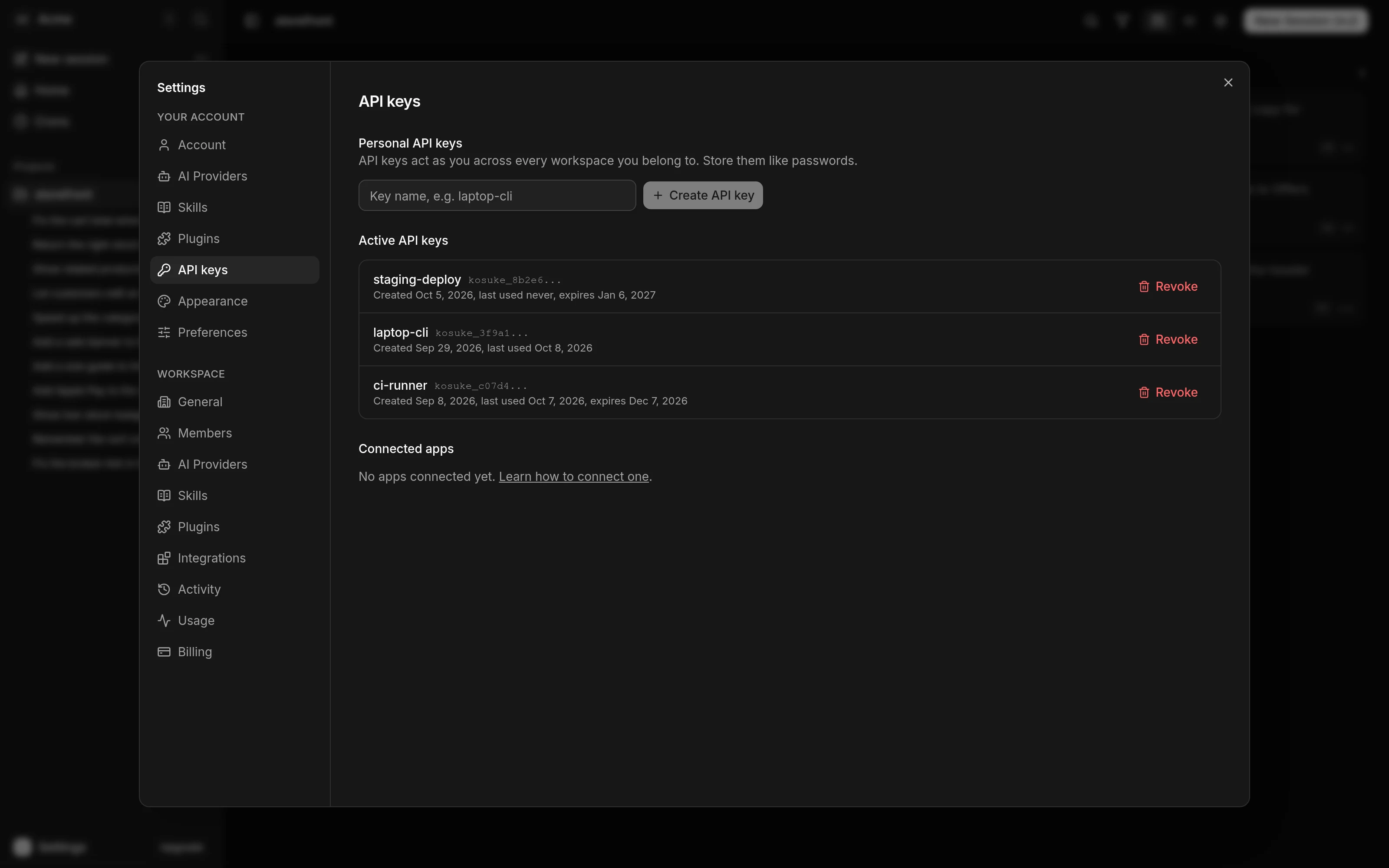
Keys you create in Settings never expire. The list shows each key's first characters, so you can tell keys apart without seeing them whole.
Send the key
Put the key in the KOSUKE_API_KEY environment variable and send it as a bearer token:
curl -s https://app.kosuke.ai/api/user/profile \
  -H "Authorization: Bearer $KOSUKE_API_KEY"
The CLI reads KOSUKE_API_KEY too. kosuke auth login saves the key for the CLI instead. The MCP server signs you in through the browser. It also accepts an API key as a bearer, which suits a client that has no browser.
The OpenAPI document, the /api/meta liveness check, the public share-link routes and the invitation preview take no key. Sign-in routes and webhooks do not take one either. Every other route needs one.
A missing, revoked or expired key gets 401 UNAUTHORIZED. A 401 with the code GITHUB_RECONNECT_REQUIRED is about your GitHub Connection, and your key still works.
What a key can reach
- It acts as you. Sensei records what it does as your actions, in Activity too.
- It reaches every workspace you belong to, with your role in each. An action that needs an owner or admin needs that role on your account.
- It has no scopes. Anyone who holds it can do through the API what you can do.
- Lists that can span workspaces, such as your projects, return results from all of them.
- A request that creates something inside a workspace names that workspace. The API calls a workspace an organization, so creating a project takes its id as
orgId, and workspace routes take it in the path.
Your API key is not a provider credential. Claude, Codex, GLM, Kimi and DeepSeek credentials belong to the workspace, and you connect them under AI providers.
What only the web app can do
A few actions need you signed in to the web app. A key that tries one gets 403 FORBIDDEN.
| Area | Where to do it |
|---|---|
| API keys and Connected Apps | Settings > You > API keys |
| Changing your profile or avatar, and deleting your account | Settings > You > Account |
| Creating, renaming, leaving or deleting a workspace, and its logo | The + beside Workspaces in the sidebar, and Settings > your workspace > General |
| Inviting and removing members, changing roles, and transferring ownership | Settings > your workspace > Members |
| Billing | Settings > your workspace > Billing |
| Your GitHub Connection and connecting an integration | Settings > Workspace > Integrations for workspace integrations (choose Personal for your own work), and Settings > You > Integrations for GitHub and your own |
| Your Sensei Chat, with its Up next, and the buttons on needs | The Sensei page |
What only the web app can do lists every such request, with the alternative an API key can use where one exists.
Revoke a key
- Open Settings > You > API keys.
- Press Revoke on the key's row.
- Press Revoke API key to confirm.
Anything using the key loses access at its next request. Create one key per machine or automation, so you can revoke one without breaking the others.
An AI app you connected to the MCP server holds a Connector Token, not an API key, so it is not in this list. It is under Connected apps in the same section. Press Disconnect on its row, then Disconnect app to confirm. It loses access at its next request.